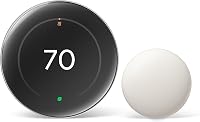
How to Override a Nest Thermostat and Hold the Temperature
A Nest thermostat override starts with changing the set temperature and choosing Hold or Keep if your model offers it. If it doesn't, adjust the schedule or learning controls that may change the setting again.
On this page (9 sections)
- How do you override a Nest thermostat?
- How long will a Nest thermostat override last?
- Why does the temperature change after you set it?
- How can you stop the schedule from changing your setting?
- What should you check before changing the temperature?
- Which thermostat suits you if you want an easier hold?
- How do you choose among these thermostats?
- What common mistakes make an override confusing?
- Which Nest thermostat override should you use?
A Nest thermostat override changes the set temperature, but it may last only until the next schedule period or an automatic feature takes over. Choose Hold or Keep if your model offers it; otherwise, check the schedule, learning, and presence settings.
For the model’s features, read the Nest Learning Thermostat 4th generation review.
The key is to decide whether you want a brief adjustment, a steady temperature for a set period, or a different recurring schedule. Those are separate controls, and the right one depends on why the temperature is changing.
How do you override a Nest thermostat?
Change the set temperature, then choose Hold or Keep if that option appears. The button name and steps vary by model, so follow the on-screen instructions or the controls in the Google Home or Nest app.
On the thermostat, use its controls to set the temperature you want. In the app, open the thermostat, change the set temperature, and look for a hold option.
If the app asks how long to keep it, select a duration that fits your plans.
Changing the set temperature alone may not create a lasting override. A scheduled period, learning feature, Home/Away setting, or connected routine can apply a different setting later.
For a wider look at these controls, read how to override smart thermostat settings.
How long will a Nest thermostat override last?
A hold lasts only as long as the thermostat or app says it will. If you don't see a duration or hold control, assume a manual temperature change may be temporary and check what the next schedule period will do.
For a short change, choose a brief hold if your model offers one. For an extended absence or a full day at home, use a longer hold when available, or edit the relevant schedule periods so the temperature stays where you want it.
When the temporary need ends, restore your usual schedule or choose an end time for the hold. This helps avoid carrying a comfort setting into a later period when no one needs it.
Why does the temperature change after you set it?
A schedule or automatic feature may be applying a different setting after your manual change. Note when the set temperature shifts, then check the schedule and active features around that time.
Learning features can adjust a schedule based on patterns, while presence settings may respond to whether the home is occupied. A connected routine can also change a setpoint if you configured one.
Learn more about what smart thermostat learning mode does and how adaptive learning thermostats work.
If the temperature changes at the same time every day, start with the schedule. If it changes when people leave or return, check presence settings.
Change one control at a time, then see whether the unexpected shift stops.
How can you stop the schedule from changing your setting?
Edit the schedule when you want a recurring temperature change, or disable scheduling if your model provides that option. A hold is better suited to a temporary override.
Open the schedule and inspect entries for the rest of the day and the following days. Update the periods that conflict with your preferred temperature, including ones that begin soon after you make a manual change.
If the thermostat still changes the setting, check learning, presence, and connected routines. Turning the thermostat off is a separate action that stops heating or cooling; use how to turn off a Nest thermostat only when that is your goal.
Can a nest thermostat override stop learning?
Review the learning controls if you want the thermostat to stop adapting its schedule. You can use a fixed schedule instead, when your model offers that option.
The menu and available controls differ by model. Check the settings on the thermostat or in its app, then watch whether the set temperature still changes at the times you noticed before.
What should you check before changing the temperature?
Confirm the thermostat is in the mode you intend to use, then change its set temperature. A setpoint change is different from switching between Heat, Cool, and Off.
If you want a thermostat that changes between heating and cooling modes automatically, see auto-changeover thermostats.
Before changing settings, check the following:
- Mode: Make sure the thermostat is set to Heat or Cool as appropriate, rather than Off.
- Hold or Keep: Look for a duration or end time so you know when the override will expire.
- Schedule: Check the next scheduled period and any later period that might reset the temperature.
- Automatic features: Review learning, presence, and any connected routines that can affect the setpoint.
Don't change wiring or equipment settings just to keep one temperature. If the screen or controls don't match the instructions, consult the guide for your thermostat model.
If you need to stop heating or cooling completely, see how to turn off a thermostat.
Which thermostat suits you if you want an easier hold?
Choose a thermostat with controls that fit your preferred way to manage temperature, and confirm HVAC compatibility before buying. A clear schedule, app access, or a dedicated hold feature can make day-to-day changes simpler.
If you also need to limit access to the controls, compare thermostat lock boxes.
The three options below suit different priorities. Their schedules and app features can help manage temperature, but confirm the wiring and system requirements before choosing a replacement.
Honeywell Wireless WiFi Thermostat: best for app and voice control
Choose the Honeywell Wireless WiFi Thermostat if you want 7-day programming, app access, and Alexa voice control. It works with the Total Connect Comfort app for remote monitoring and control, and it includes an Energy Savings mode and on-screen comfort information.
It suits someone who wants a weekly schedule and remote adjustments from a phone. Skip it if your system lacks the required C-wire or you prefer a thermostat that doesn't depend on Wi-Fi and app access.
Sensi Smart Thermostat: best for straightforward DIY setup
Choose Sensi if you want app-guided installation and familiar button controls. Its built-in level and step-by-step app instructions are designed to support DIY setup, and a C-wire isn't required in most applications.
Flexible scheduling, remote access, usage reports, and maintenance reminders make it a fit for someone who wants app controls without a touchscreen interface. Skip it if you need a thermostat guaranteed to work without a C-wire, since that depends on the application, or if its compatible HVAC controls don't fit your system.
Honeywell Home RTH9585WF1004: best for touchscreen holds
Choose this Honeywell Home model if you want a color touchscreen and temporary, permanent, or vacation holds. Those hold choices make it the clearest fit here for someone who wants to specify how long a temperature change should last.
It also supports flexible programming, monthly energy reports, and Alexa and Google Home. Skip it if your home has electric baseboard heat or lacks the required C-wire; it is compatible with specified forced-air, hot water, steam, and heat pump systems with electric backup.
How do you choose among these thermostats?
Start with HVAC compatibility and wiring, then choose the controls you'll use most. A hold feature matters only if the thermostat can safely control your system and its schedule fits your routine.
Use this quick decision rule:
- Pick the Honeywell Home RTH9585WF1004 if touchscreen controls and explicit temporary, permanent, or vacation holds are your priority, and your system matches its compatibility requirements.
- Pick the Sensi if you prefer buttons, app-guided setup, flexible scheduling, and remote access, and your wiring suits the installation.
- Pick the Honeywell Wireless WiFi Thermostat if 7-day programming, Alexa control, and Total Connect Comfort app access fit how you manage your home.
Before replacing a thermostat, identify your HVAC type and check the wires at the existing control. If you're unsure about the wiring, use a qualified installer.
For more on compatibility, see what to check before choosing a smart thermostat.
What common mistakes make an override confusing?
The most common mistake is treating a temperature change, a hold, and turning the system off as the same action. Each affects the thermostat differently.
Avoid these errors:
- Changing the setpoint but ignoring the schedule: A later schedule period may replace your choice.
- Changing the mode instead of the temperature: Heat, Cool, and Off control what the system can do, not the target temperature within that mode.
- Assuming every Nest has the same hold option: Check the menu on your model and app version.
- Leaving a temporary setting in place: Set an end time or restore the schedule when the change is no longer needed.
- Buying before checking compatibility: Confirm the wiring and system type, especially the C-wire requirements and restrictions on electric baseboard heat.
If the thermostat continues to shift the setpoint after you check these items, review connected routines and app settings before changing installation or equipment settings.
Which Nest thermostat override should you use?
Use Hold or Keep for a temporary change, edit the schedule for a repeated routine, and review learning or presence settings when automatic changes keep returning. Choose Off only when you want heating or cooling to stop.
If you're replacing a Nest because you want a clearer way to keep a chosen temperature, the Honeywell Home model is the strongest fit here for explicit hold durations. Choose Sensi for app-guided setup and button controls, or the Honeywell Wireless WiFi Thermostat for 7-day programming and Alexa access.
For a Nest thermostat override that lasts, match the control to the reason for the change, then check when it should end. If you need to compare broader thermostat choices, start with our smart thermostat guide.
Frequently asked questions
How do I get a Nest thermostat to hold one temperature?
Set your preferred temperature, then choose Hold or Keep if that option appears on your Nest model. Select a duration if prompted.
If you don't see a hold control, review the thermostat's schedule and learning settings, since those can apply a different temperature later.
Why does my Nest thermostat keep changing the temperature?
A schedule, learning feature, Home/Away setting, or connected routine may be changing the set temperature. Check when the shift happens, then compare that time with schedule entries and the features enabled on your model.
The controls and menu names vary by thermostat and app version.
Can I override a Nest thermostat from the app?
You can change the set temperature in the Google Home app or Nest app, depending on your thermostat model and setup. To keep that temperature, choose a hold option if available or edit the schedule.
A temperature change from the app may be temporary if another setting is due to take effect.
Does turning off a Nest thermostat stop the schedule?
Turning the thermostat off stops heating or cooling, but it doesn't necessarily remove the schedule or other automations. To keep the system running at one chosen temperature, use a hold option or change the schedule.
Follow the controls for your model.