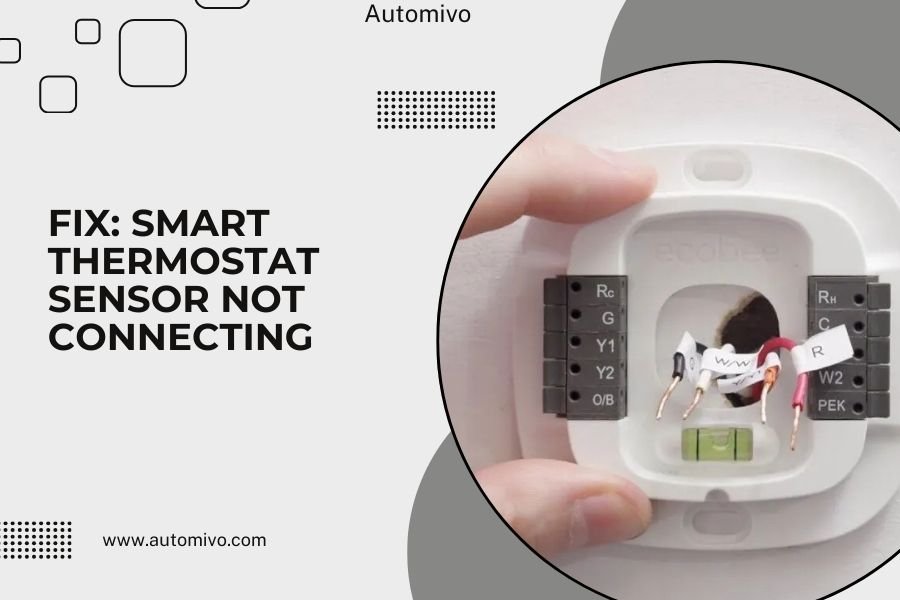
A smart thermostat sensor that won’t connect usually needs a simple reset, battery replacement, or network refresh to work properly again.
Most sensor connection issues happen because of weak Wi-Fi signals, dead batteries, or interference from other devices blocking the signal path.
Quick Fixes to Try First
Let’s start with the fastest solutions. These work for about 70% of connection problems I’ve seen reported online.
Reset Your Sensor
Find the small reset button on your sensor. Press and hold it for 10-15 seconds until you see a light flash. This clears any stuck settings that might block the connection.
Wait two minutes after resetting. Your thermostat should automatically detect the sensor during this time.
Check the Battery Level
Low batteries cause more connection failures than anything else. Pop open your sensor and look at the battery indicator light.
Replace batteries even if they seem “okay.” Weak batteries create spotty connections that come and go randomly.
Move Closer to Your Thermostat
Walk your sensor closer to the main thermostat unit. If it connects within 10 feet, you’ve found a range issue.
Walls, metal objects, and other electronics can block the signal. Even microwaves running nearby can cause interference.
Network Connection Problems
Your smart thermostat and sensors need strong network signals to talk to each other. Here’s how to fix network issues.
Restart Your Wi-Fi Router
Unplug your router for 30 seconds, then plug it back in. This refreshes all network connections and often fixes sensor problems.
Many experts recommend doing this monthly anyway to keep your smart home devices running smoothly.
Check Signal Strength
Use your phone’s Wi-Fi settings to check signal strength where your sensor sits. You need at least 2-3 bars for reliable connection.
If the signal is weak, try moving your router closer or adding a Wi-Fi extender to boost coverage.
Common Wi-Fi Interference Sources
- Baby monitors and security cameras
- Bluetooth speakers and headphones
- Microwave ovens when running
- Thick walls with metal studs
- Large appliances like refrigerators
Thermostat-Specific Solutions
Different thermostat brands have unique connection methods. Let me share what I found works for popular models.
Nest Thermostat Sensors
Open the Nest app and go to Settings. Look for “Add Product” and select “Temperature Sensor.”
Hold your phone near the sensor during setup. The app uses Bluetooth to help with the initial connection process.
Nest Troubleshooting Steps
- Remove the sensor from the app completely
- Reset the sensor using the side button
- Re-add it as a new device
- Keep your phone within 3 feet during setup
Ecobee Sensors
Go to your Ecobee app and tap “Add Sensor.” The app will search for nearby sensors automatically.
If it doesn’t find your sensor, try the manual pairing mode. Hold the sensor’s button until you see a blinking light.
Ecobee Connection Tips
- Make sure your thermostat firmware is updated
- Try pairing during off-peak hours (less network traffic)
- Remove other sensors temporarily during setup
- Check that your sensor isn’t already paired to another account
Honeywell Smart Sensors
Use the Honeywell Home app to add your sensor. Go to “Add Device” and follow the screen prompts.
Honeywell sensors often need to be very close to the thermostat during initial setup. Try holding them within 2 feet of each other.
Physical Installation Issues
Sometimes the problem isn’t technical – it’s about where and how you’ve placed your sensor.
Optimal Sensor Placement
Mount your sensor 4-5 feet off the ground on an interior wall. This height gives the best temperature readings and signal range.
Avoid placing sensors near windows, doors, or air vents. These spots have temperature swings that confuse the system.
Bad Sensor Locations
- Direct sunlight from windows
- Above heating vents or radiators
- In closets or cramped spaces
- Near exterior walls in extreme weather
- Too close to electronics that generate heat
Distance Limitations
Most sensors work reliably within 150 feet of your thermostat. But walls and obstacles cut this range significantly.
I found that each wall typically reduces range by 20-30 feet. Metal objects and appliances create even bigger signal blocks.
Advanced Troubleshooting Methods
If basic fixes don’t work, try these deeper solutions that address less common problems.
Factory Reset Your Thermostat
This is the nuclear option, but it works when nothing else does. You’ll need to set up your entire system again.
Before resetting, write down your current temperature schedules and preferences. You’ll want to recreate these settings afterward.
When to Try a Factory Reset
- Multiple sensors won’t connect
- Sensors connect but don’t respond
- Connection works sometimes but not others
- Error messages appear repeatedly
Update Firmware and Apps
Check your thermostat app for system updates. Old firmware often has connection bugs that newer versions fix.
Update your smartphone app too. Newer app versions usually have better pairing processes and bug fixes.
Check for Device Conflicts
Too many smart home devices can overwhelm your network. Try temporarily disconnecting other devices during sensor setup.
Some security systems and smart locks use the same radio frequencies as thermostat sensors. This can cause interference problems.
Professional Help Options
Sometimes you need expert assistance to get your sensors working properly.
Contact Manufacturer Support
Most thermostat companies offer free phone and chat support. They can run remote diagnostics and spot problems you might miss.
Have your model number and serial number ready when you call. This helps support agents find specific solutions faster.
What Support Can Do Remotely
- Check your account settings and device pairings
- Push firmware updates directly to your thermostat
- Reset network connections from their end
- Identify hardware problems that need replacement
HVAC Technician Assessment
An HVAC professional can check your entire system for problems. They have specialized tools to test signal strength and network connections.
This makes sense if you’re having multiple smart home device problems, not just thermostat issues.
Prevention Tips
Keep your sensors connected reliably with these simple maintenance steps.
Regular Battery Changes
Replace sensor batteries every 12-18 months, even if they still work. Set a calendar reminder so you don’t forget.
Use high-quality batteries from known brands. Cheap batteries die faster and can leak, damaging your sensors.
Monthly Connection Tests
Check your sensor connections monthly through your thermostat app. Look for weak signal warnings or offline sensors.
Test each sensor by changing its temperature setting slightly. You should see the change reflected in your app within a few minutes.
When to Replace Your Sensor
Sometimes sensors just wear out and need replacement. Here’s how to tell when yours might be failing.
Signs of Hardware Failure
If your sensor randomly disconnects every few days, the internal radio might be dying. This happens more often with sensors over 3-4 years old.
Physical damage like cracks or water exposure can also cause connection problems that can’t be fixed.
Replacement Indicators
- Frequent disconnections despite good batteries
- Won’t connect even when held next to thermostat
- App shows sensor as “offline” constantly
- Temperature readings seem wildly inaccurate
- Physical damage to the sensor housing
Conclusion
Most smart thermostat sensor connection problems come down to simple fixes like battery replacement, signal interference, or network issues. Start with the quick solutions first – reset your sensor, check the batteries, and restart your router. These steps solve the majority of connection problems.
If basic troubleshooting doesn’t work, look at your sensor placement and network setup. Make sure your Wi-Fi signal is strong where the sensor sits, and avoid locations with temperature extremes or interference sources. When all else fails, contact your thermostat manufacturer’s support team – they can often solve problems remotely that would take you hours to figure out on your own.
Why does my sensor keep disconnecting randomly?
Random disconnections usually mean your batteries are getting weak or there’s interference from other devices. Replace the batteries first, then check for nearby electronics that might block the signal like baby monitors or Bluetooth speakers.
How close does my sensor need to be to the thermostat?
Most sensors work reliably within 150 feet, but walls and metal objects reduce this range significantly. Each wall typically cuts the range by 20-30 feet, so sensors in distant rooms might struggle to maintain connection.
Can I use sensors from different brands with my thermostat?
No, you need to use sensors specifically designed for your thermostat brand. Nest sensors only work with Nest thermostats, Ecobee with Ecobee, and so on. The communication protocols are different between manufacturers.
What should I do if my sensor connects but gives wrong temperature readings?
Move the sensor away from heat sources like windows, vents, or electronics. Mount it on an interior wall about 4-5 feet high where air circulates normally. If readings are still off, the sensor might need calibration or replacement.
How often should I replace sensor batteries?
Replace batteries every 12-18 months for best performance. Don’t wait for low battery warnings, as weak batteries cause connection problems before they completely die. Set a yearly reminder to change them proactively.