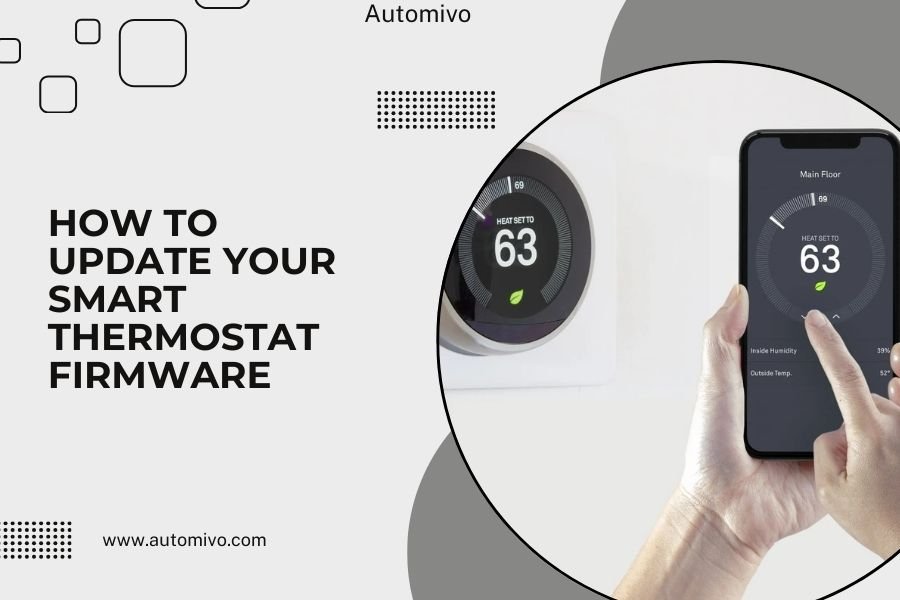
Updating your smart thermostat firmware typically requires opening the device’s app, going to settings, and selecting “firmware update” or “system update” when available.
Most smart thermostats check for firmware updates automatically, but you can manually trigger updates through the manufacturer’s mobile app or web portal.
Why Smart Thermostat Firmware Updates Matter
Think of firmware updates like getting a tune-up for your car. Your smart thermostat’s brain gets sharper with each update.
These updates fix bugs that might cause temperature swings. They add new features you didn’t have before. Security patches protect your home network from hackers.
I found that many homeowners skip updates and miss out on better energy savings. Some updates can improve efficiency by 10-15%.
When to Update Your Smart Thermostat Firmware
Your thermostat should update automatically in most cases. But sometimes you need to take action.
Check for updates monthly. Update immediately if you notice weird behavior like incorrect temperatures or connection issues.
Signs You Need a Firmware Update
Watch for these red flags:
- App crashes or won’t connect to your thermostat
- Temperature readings seem off by more than 2 degrees
- Scheduling features stop working properly
- Wi-Fi connectivity drops frequently
- Voice commands through Alexa or Google stop responding
Step-by-Step Firmware Update Process
The update process varies by brand, but the basic steps stay the same. Let me walk you through it.
Before You Start the Update
Preparation prevents problems. Do these things first:
- Make sure your Wi-Fi connection is strong and stable
- Charge your phone or tablet to at least 50%
- Close other apps running on your device
- Write down your current thermostat settings just in case
Opening Your Thermostat App
Launch your thermostat’s app on your phone. Each brand has its own app name. Nest uses Google Home. Honeywell has the Total Connect Comfort app.
Make sure you’re logged into the right account. The app should show your thermostat’s current status.
Finding the Update Settings
Look for a settings menu. It’s usually represented by a gear icon or three lines.
You’ll typically find firmware updates under names like:
- System Updates
- Firmware Update
- Device Settings
- Software Version
Nest Thermostat Update Path
Open Google Home app. Tap your thermostat. Select Settings, then Technical Info. Look for Software Version.
Honeywell Update Process
In the Total Connect app, go to Menu, then Account Settings. Choose System Updates.
Ecobee Update Steps
Use the Ecobee app. Go to Menu, select your thermostat, then About. Check Software Version.
Starting the Update Process
When you find an available update, tap Download or Install. The process usually takes 10-30 minutes.
Don’t close the app during updates. Your thermostat screen might go blank or show update progress. This is normal.
Troubleshooting Common Update Problems
Updates don’t always go smoothly. Here’s how to fix the most common issues.
Update Won’t Start
This usually means connectivity problems. Check your Wi-Fi signal strength near the thermostat.
Try restarting your router. Unplug it for 30 seconds, then plug it back in.
Update Fails Halfway Through
Don’t panic. Most thermostats can recover from failed updates.
Wait 10 minutes, then try the update again. If it fails twice, contact customer support.
Power Issues During Updates
If your thermostat loses power during an update, it might enter recovery mode. You’ll see a blank screen or error message.
Turn off your HVAC system at the circuit breaker for 5 minutes. Turn it back on. The thermostat should restart normally.
App Won’t Connect After Update
Sometimes updates reset Wi-Fi settings. You might need to reconnect your thermostat to your network.
Look for a Wi-Fi setup option in your app. Follow the connection steps like you’re setting up a new device.
Different Update Methods by Brand
Each manufacturer handles updates differently. Let me break down the major brands.
| Brand | Update Method | Typical Time | Auto-Update |
|---|---|---|---|
| Nest | Google Home App | 15-20 minutes | Yes |
| Honeywell | Total Connect App | 10-25 minutes | Optional |
| Ecobee | Ecobee App | 20-30 minutes | Yes |
| Sensi | Sensi App | 10-15 minutes | Yes |
Manual vs Automatic Updates
Most modern smart thermostats update automatically. But you can turn off auto-updates if you prefer control.
I found that manual updates work better if you have unreliable internet. You can pick the best time when your connection is strongest.
What Happens During a Firmware Update
Your thermostat basically restarts its brain during an update. Here’s what you’ll see:
Visual Changes You’ll Notice
The display might go dark for several minutes. Some show progress bars or spinning icons.
Your HVAC system will keep running on its last settings. The update won’t affect your home’s temperature.
App Behavior During Updates
Your app might show “Device Offline” or “Updating.” This is normal. Don’t try to reconnect until the update finishes.
Network Activity
Updates download new software from the manufacturer’s servers. Your thermostat will use more bandwidth than usual.
After the Update Completes
Once your thermostat restarts, it should work normally. Check that all your settings are still correct.
Test basic functions like changing temperature and switching between heating and cooling.
Verifying the Update Worked
Go back to your app’s settings. Check the software version number. It should be higher than before.
Many apps show update history or recent changes. Take a quick look to see what improved.
Checking New Features
Updates often add new capabilities. You might find new scheduling options or energy-saving modes.
Spend a few minutes exploring your app. Look for features you haven’t seen before.
Preventing Future Update Issues
Good habits make updates smoother. Follow these tips:
Maintain Strong Wi-Fi Connection
Position your router reasonably close to your thermostat. Thick walls and metal ducts can block Wi-Fi signals.
Consider a Wi-Fi extender if your thermostat is far from your router.
Regular App Maintenance
Keep your thermostat app updated on your phone. Old app versions sometimes can’t handle new firmware.
Clear the app’s cache monthly. This prevents connection glitches.
Monitor Update Notifications
Enable push notifications for your thermostat app. You’ll know immediately when updates are available.
Some manufacturers send email notifications too. Don’t ignore these messages.
Security Benefits of Firmware Updates
Cybersecurity experts constantly find new threats. Firmware updates patch security holes before hackers can exploit them.
I researched smart home security and found that outdated thermostats are common entry points for attacks. Keep yours updated.
Protecting Your Home Network
Your smart thermostat connects to your Wi-Fi network. An insecure thermostat could let hackers access other devices.
Regular updates create a stronger defense against these intrusions.
Conclusion
Updating your smart thermostat firmware keeps your device running smoothly and securely. The process usually takes 15-30 minutes and happens automatically for most brands. When you need to update manually, use your manufacturer’s app and ensure strong Wi-Fi connectivity. Regular updates give you better features, improved energy efficiency, and protection against security threats. Check for updates monthly and don’t delay installing them when they’re available. Your home’s comfort and security depend on keeping this important device current.
How often should I check for smart thermostat firmware updates?
Check monthly even if your thermostat updates automatically. Some updates require manual approval, and regular checking ensures you don’t miss important security patches or new features.
Will updating firmware erase my thermostat schedule and settings?
Most updates preserve your settings, but it’s smart to write them down beforehand. Occasionally, major updates might reset some preferences, so having a backup helps restore your preferred configuration quickly.
Can I use my thermostat normally during a firmware update?
Your HVAC system continues running on its last settings during updates, so your home stays comfortable. But you can’t make changes through the app or thermostat display until the update completes.
What should I do if my thermostat won’t turn on after an update?
Turn off your HVAC system at the circuit breaker for 5 minutes, then turn it back on. This forces a complete restart. If the problem persists, contact your manufacturer’s customer support for recovery assistance.
Do all smart thermostat brands update the same way?
Each brand uses its own app and update process, but the basic steps are similar. Nest uses Google Home, Honeywell uses Total Connect Comfort, and Ecobee has its own app. All typically update through their respective mobile applications.
