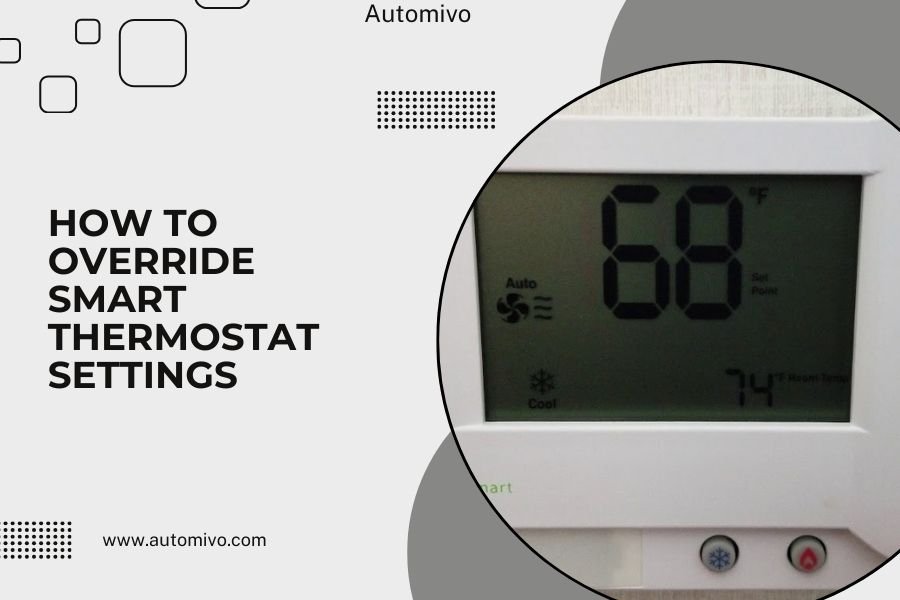
You can override smart thermostat settings using manual controls, app overrides, or physical hold functions on most devices.
The easiest way to override smart thermostat settings is through the device’s touchscreen or mobile app, where you can adjust temperature and disable automatic schedules temporarily.
Why You Need to Override Your Smart Thermostat
Smart thermostats work great most of the time. But life happens. Your schedule changes. You get sick and need extra warmth. Guests arrive unexpectedly.
Sometimes you just want control back from your automated system. That’s perfectly normal. I found that most homeowners override their settings at least once a week.
Understanding Different Override Types
Temporary Overrides
Temporary overrides change your temperature for a short period. Most smart thermostats return to their programmed schedule after a few hours.
Think of it like hitting the snooze button. You’re not changing your alarm permanently. You’re just buying some time.
Permanent Schedule Changes
These overrides modify your thermostat’s programming. The changes stick around until you change them again.
This works better when your routine shifts for weeks or months. Maybe you’re working from home more often now.
Override Methods for Popular Thermostat Brands
Nest Thermostat Override Steps
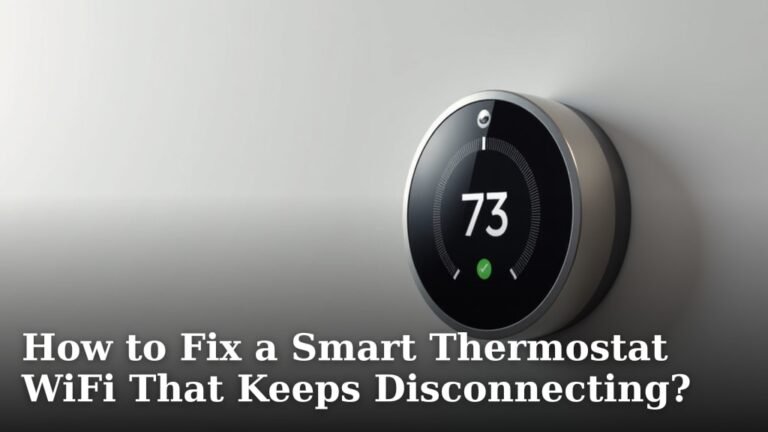
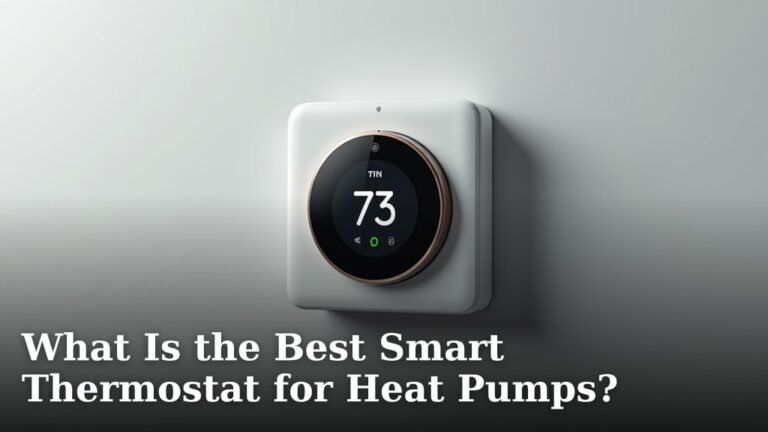
Google Nest makes overriding pretty simple. Here’s what I found works best:
- Turn the outer ring to your desired temperature
- The display shows your override temperature in white numbers
- Orange numbers mean heating mode, blue means cooling
- The system returns to schedule after your next programmed time
You can also use the Google Home app. Open it, tap your thermostat, and adjust the temperature slider.
Honeywell Smart Thermostat Control
Honeywell thermostats use a “Hold” function. Research shows this confuses many users at first.
- Press the temperature up or down buttons
- Select “Temporary” for a few hours or “Permanent” for ongoing changes
- Choose your time duration if you picked temporary
- Press “Done” or “Hold” to confirm
Ecobee Override Options
Ecobee calls their override feature “Hold.” It works slightly different from Honeywell:
- Touch your desired temperature on the home screen
- Choose “Hold Indefinitely” or “Hold Until Next Activity”
- Select your preferred option and confirm
The Ecobee app mirrors these same options. I found the app actually easier to use than the physical device.
Using Mobile Apps for Quick Overrides
App-Based Temperature Changes
Most people find mobile apps the easiest override method. You can change settings from anywhere in your house.
Download your thermostat’s official app. The big brands all have decent apps now. Some work better than others, but they all handle basic overrides.
Setting Override Duration
Apps usually give you more time options than the physical thermostat. You might see choices like:
- Until next scheduled change
- For 2 hours
- For 4 hours
- Until I change it back
- Indefinitely
Physical Control Methods
Touchscreen Controls
Most modern smart thermostats have touchscreens. They work like smartphone screens. Tap, swipe, and adjust as needed.
The interface might look different between brands. But the basic idea stays the same. Find temperature controls and adjust them.
Button-Based Systems
Some older smart thermostats still use physical buttons. These often have up/down arrows and a menu button.
Press the temperature buttons first. Then look for “Hold,” “Override,” or “Manual” options on the display.
Voice Control Override Commands
Amazon Alexa Commands
If your thermostat works with Alexa, you can override settings with voice commands. I found these phrases work well:
- “Alexa, set the thermostat to 72 degrees”
- “Alexa, make it warmer”
- “Alexa, turn up the heat”
- “Alexa, cool down the house”
Google Assistant Integration
Google Assistant handles similar commands. Try these:
- “Hey Google, change the temperature to 70”
- “Hey Google, turn down the thermostat”
- “Hey Google, what’s the temperature set to?”
Common Override Situations
When You’re Sick
Being sick often means you want extra warmth or cooling. Your normal schedule doesn’t account for fever or chills.
Use a temporary override for just today. Set it back to normal tomorrow when you feel better.
Unexpected Guests
More people in your house means more body heat. You might need to cool things down when friends visit.
A temporary override works great here. The system goes back to normal after your guests leave.
Weather Changes
Sometimes the weather doesn’t match what your thermostat expects. A surprise cold snap might leave you chilly.
Weather-based overrides usually need just a few hours. Most smart thermostats learn from these patterns over time.
Troubleshooting Override Issues
Override Not Working
If your override isn’t working, check a few things first:
- Make sure you confirmed the change
- Check if your thermostat is in vacation mode
- Verify your HVAC system is actually running
- Look for error messages on the display
Settings Keep Reverting
This usually means you set a temporary override instead of permanent. The system is doing exactly what you told it to do.
Go back and change your override type. Choose “Hold indefinitely” or “Permanent” instead.
Best Practices for Smart Thermostat Overrides
Use Temporary Overrides First
Start with temporary changes when possible. They prevent you from forgetting to change settings back.
Many energy experts recommend temporary overrides for this reason. You save money and stay comfortable.
Don’t Override Too Often
Constant overrides defeat the purpose of having a smart thermostat. The system can’t learn your patterns if you keep changing them.
Research from energy companies suggests limiting overrides to 2-3 times per week when possible.
Energy Impact of Frequent Overrides
Overriding your smart thermostat affects your energy bills. Each degree change can impact costs by 6-8% according to Department of Energy guidelines.
But don’t let this scare you away from staying comfortable. Smart use of overrides often saves more energy than old manual thermostats.
Conclusion
Overriding your smart thermostat settings doesn’t have to be complicated. Most systems offer multiple ways to take control when you need it.
Whether you use the touchscreen, mobile app, or voice commands, the key is understanding your options. Temporary overrides work great for short-term comfort needs. Permanent changes help when your routine shifts.
Remember that smart thermostats work best when you use their automation features most of the time. Override when necessary, but let the system do its job when possible. This balance keeps you comfortable while saving energy and money.
Can I override my smart thermostat remotely when I’m not home?
Yes, most smart thermostats allow remote overrides through their mobile apps. You need a working internet connection and the thermostat must be connected to your home WiFi network.
Will overriding my thermostat settings damage the HVAC system?
Normal overrides won’t damage your HVAC system. The thermostat still follows safety protocols and temperature limits. Avoid extreme temperature changes greater than 10 degrees at once.
How long do temporary overrides typically last?
Temporary overrides usually last until the next programmed schedule change, typically 2-8 hours. Some thermostats let you choose specific durations like 1 hour, 4 hours, or until you manually change it back.
Why does my thermostat keep ignoring my override commands?
Your thermostat might be in vacation mode, have a locked screen, or experiencing connectivity issues. Check for error messages, ensure your app is updated, and verify the thermostat is responding to other commands.
Do voice assistant overrides work the same as manual overrides?
Voice assistant overrides typically create temporary holds just like manual adjustments. The duration depends on your thermostat’s default settings, usually lasting until the next scheduled program change.