
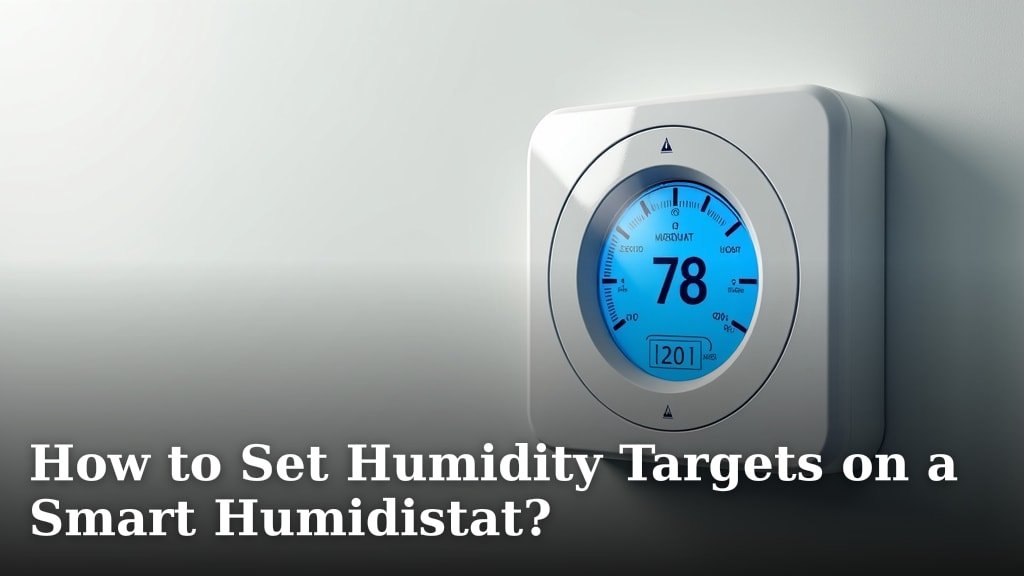
Setting humidity targets on your smart humidistat is surprisingly simple. You just need to access your device’s settings, often through a mobile app or a control panel, and input your desired relative humidity percentage. Most smart humidistats allow you to set targets between 30% and 60%, which is generally considered the ideal range for homes.
Getting your home’s humidity just right offers many benefits, from protecting your furniture to improving your personal comfort. Overly dry air can lead to static shock and dry skin, while too much moisture can encourage mold growth. Understanding how to set your smart humidistat ensures you maintain a healthy indoor environment For a comprehensive approach to air quality, consider how smart ventilation can further enhance your home’s atmosphere. with minimal effort.
TL;DR:
- Access your humidistat’s settings via app or panel.
- Input your target humidity percentage (usually 30%-60%).
- This helps protect your home and health.
- It’s an easy process for better indoor air quality.
Let’s walk through exactly how to set those targets to get your home feeling just right.
Setting Your Ideal Home Humidity Levels with Your Smart Humidistat
You’ve got your smart humidistat set up, and now it’s time to dial in the perfect humidity for your home. This isn’t just about comfort; it’s about protecting your belongings and your health. We found that getting this right is simpler than you might think. Your smart device is designed to make this easy for you.
Understanding Your Target Humidity Range
Before you start pressing buttons, let’s talk about what’s considered healthy and comfortable. Most health organizations and HVAC experts suggest a relative humidity range between 30% and 60% for residential settings (CDC). This sweet spot helps prevent issues associated with both dry and overly humid air.
Why is the 30%-60% Range So Important?
Think of this range as your home’s happy place. When humidity is too low, below 30%, you’re more likely to experience dry skin, chapped lips, and increased static electricity. Your wooden furniture and musical instruments can also suffer, developing cracks and warping. We found that low humidity can even make you more susceptible to colds and respiratory irritations because your nasal passages dry out.
On the flip side, when humidity climbs too high, above 60%, your home can become a breeding ground for mold, mildew, and dust mites. These can trigger allergies and asthma symptoms. High humidity also makes your home feel warmer than it is, leading to higher cooling bills. Plus, sticky, damp air is just plain uncomfortable.
Locating Your Humidistat’s Control Settings
Now, let’s find where you actually make these adjustments. Most smart humidistats offer control through two main avenues: a dedicated mobile app or a physical control panel on the unit itself. Your device’s manual will be your best friend here, but we can give you a general idea.
Using the Mobile App
If your humidistat has an accompanying app, this is usually the most convenient way to manage settings. After downloading the app and pairing it with your device (which typically involves connecting it to your home Wi-Fi), you’ll look for sections labeled ‘Settings,’ ‘Controls,’ or ‘Climate.’ Within these menus, you should find an option to set your ‘Target Humidity,’ ‘Humidity Setpoint,’ or similar wording. You’ll likely see a slider, a numerical input field, or +/- buttons to select your desired percentage.
Using the On-Unit Control Panel
For humidistats with a physical panel, you’ll navigate the menus directly on the device. Look for buttons or a touchscreen interface. Common navigation involves pressing a ‘Menu’ or ‘Settings’ button, then scrolling through options using arrow keys or by touching icons on the screen. Once you find the humidity setting, you’ll use the controls to adjust the percentage up or down. Many users find the app experience more intuitive, but the on-unit control works just as effectively.
Setting Your Specific Humidity Target
With your humidistat’s interface open, it’s time to input your desired level. Remember that 30%-60% range we discussed? You’ll want to choose a target within that window.
Choosing a Starting Point
If you’re unsure where to begin, many experts suggest starting around 45%. This is a common middle-ground that works well for many homes. You can then monitor how your home feels and adjust from there. Some systems might even offer pre-set modes like ‘Comfort,’ ‘Energy Saving,’ or ‘Allergy Relief,’ which automatically select appropriate humidity targets.
Adjusting the Percentage
Use the app or the physical controls to set the number. You’ll typically see a display showing the current humidity level and a separate field for your target. For example, you might set your target to 45%. Your humidistat will then work to maintain humidity levels as close to 45% as possible.
Understanding “Deadbands” or Hysteresis
You might notice a setting called “deadband” or “hysteresis.” This is a small range around your target that prevents the humidistat from cycling on and off too frequently. For instance, if your target is 45% and your deadband is 3%, the humidistat might not turn on the humidifier until the humidity drops to 42% and won’t turn it off until it reaches 48%. We found that a deadband of 3-5% is pretty standard and helps conserve energy and wear on the equipment.
Monitoring and Fine-Tuning Your Settings
Setting the target is just the first step. Your smart humidistat will do the heavy lifting, but occasional checks ensure everything is running smoothly and your home feels just right.
Reading Your Humidistat’s Display
Most smart humidistats will clearly show you the current indoor humidity reading. Keep an eye on this throughout the day and night. Does it stay close to your target? If it seems to consistently miss the mark, you may need to adjust your target slightly or check your device’s placement.
Using the App for Insights
Many smart humidistat apps provide historical data or humidity charts. This is fantastic for seeing trends. You can understand when humidity levels tend to drop or rise in your home. This data helps you make informed adjustments. We found that looking at this data over a week or two is very helpful for getting a feel for your home’s natural humidity fluctuations.
When to Adjust Your Target
Your ideal humidity might change with the seasons. During very cold, dry winters, you might need to set your target a bit lower, perhaps 35-40%, to prevent condensation on windows. In humid summer months, if you don’t have a dehumidifier integrated or if it’s struggling, you might aim for 50-55%. Listen to your home and your body. If you’re experiencing static shocks, lower it. If you notice condensation or a musty smell, raise it slightly or consider a dehumidifier.
Optimal Placement Matters
Where your humidistat is located can influence its readings. Ideally, it should be placed in a central area of your home, away from direct sunlight, drafts, heating and cooling vents, and humid areas like bathrooms or kitchens. We found that a location on an interior wall on the main living level is often best for an accurate whole-home reading.
Troubleshooting Common Humidity Issues
Occasionally, you might run into snags. Don’t worry, most are easily fixed.
Inconsistent Readings
If your humidistat seems to be all over the place, check its placement and ensure the sensor isn’t blocked or dirty. Also, make sure your Wi-Fi connection is stable if you’re relying on app data.
Device Not Reaching Target
If your humidistat consistently fails to reach your target humidity (e.g., it’s set to humidify but the humidity stays low), there are a few possibilities. First, check your humidifier’s water supply. Is it full? Is the unit itself functioning correctly? If you have a whole-house system integrated with your HVAC, there might be an issue with your furnace or air handler. You may need to consult your HVAC professional.
Too Much Condensation
If you’re seeing condensation on windows, especially double-paned ones, your indoor humidity is likely too high. Lower your target humidity setting immediately. If the problem persists, you might have a more significant air sealing or ventilation issue in your home. The Environmental Protection Agency (EPA) recommends checking for these types of issues in older homes.
A Quick Checklist for Setting Your Targets
Let’s summarize the key steps:
- Check Your Device Manual: Always start here for specific instructions.
- Identify Your Interface: Decide if you’ll use the mobile app or the on-unit panel.
- Choose Your Target Range: Aim for 30%-60% relative humidity.
- Set the Percentage: Input your desired number, starting around 45% is a good bet.
- Monitor Readings: Keep an eye on current humidity to ensure it’s stable.
- Adjust as Needed: Fine-tune based on comfort, seasons, and potential issues like condensation.
Conclusion
You’ve now learned how to set humidity targets on your smart humidistat, turning your device into a powerful tool for a more comfortable and healthy home. Remember, finding that sweet spot between 30% and 60% is key to preventing issues like dry skin, static shock, and mold growth. By following these steps, you can easily adjust your settings through the app or control panel to maintain your ideal indoor climate. Your next step is to access your humidistat’s settings and input your chosen target humidity percentage. Happy humidifying!
Frequently Asked Questions
What’s the difference between target humidity and current humidity?
Your target humidity is the percentage you set your humidistat to achieve and maintain. The current humidity is what your humidistat’s sensor is actually measuring in your home at that moment. Your humidistat works to make the current humidity match your target.
Can I set different humidity targets for day and night?
Some advanced smart humidistats allow you to create schedules, enabling different target humidity settings for various times of the day or night. Check your device’s app or manual to see if this feature is available. This can be helpful for optimizing comfort and energy usage.
How often should I check my humidistat’s settings?
You don’t need to constantly monitor your settings. Once you’ve found your ideal target, your humidistat will maintain it. It’s a good idea to check your settings periodically, perhaps once a month, or when you notice changes in your home’s comfort level or see condensation.
My humidistat isn’t reaching my target humidity. What could be wrong?
Several factors can cause this. Ensure your humidifier’s water tank is full and the unit is properly connected. Also, check if the humidistat is placed in an optimal location, away from drafts or heat sources, as this can affect its readings and performance. You might also need to adjust the deadband setting.
Is a “deadband” setting important for my humidistat?
Yes, the deadband (or hysteresis) is important. It creates a small buffer zone around your target humidity to prevent the humidifier from cycling on and off too frequently. This conserves energy and reduces wear and tear on your equipment, and we found a 3-5% deadband is generally effective.
