
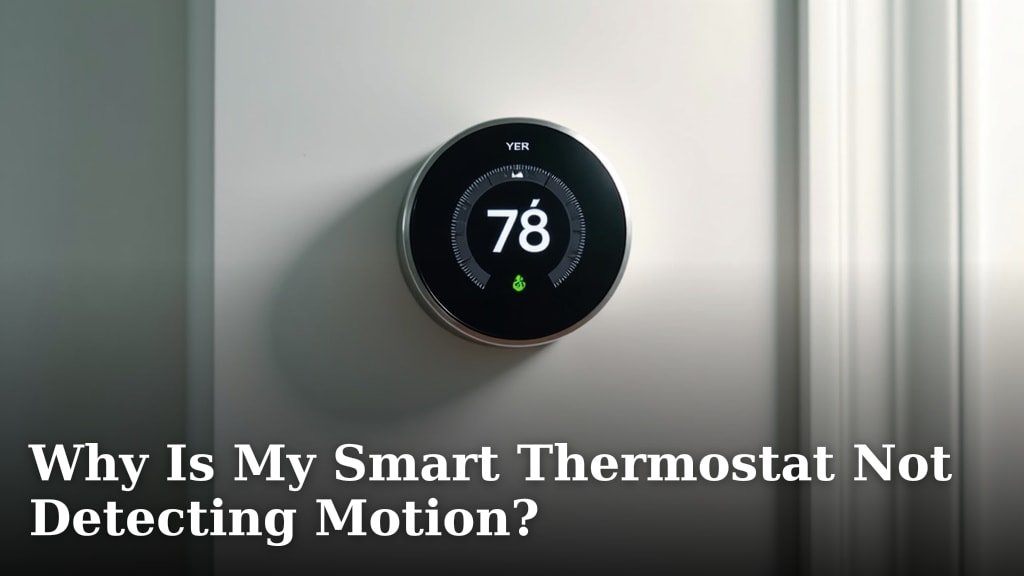
Your smart thermostat isn’t detecting motion because its motion sensor might be dirty, blocked, or its sensitivity settings are off. Sometimes, the issue is as simple as a firmware update or a Wi-Fi connection problem that prevents it from communicating properly. We’ve found these are the most common culprits when your device seems to be ignoring your presence.
Why is this important? A smart thermostat uses motion detection to learn your habits and adjust your home’s temperature automatically. This helps you save energy and money by not heating or cooling an empty house. When motion detection fails, you lose out on these smart benefits.
- Sensor is dirty or blocked.
- Sensitivity settings are too low.
- Needs a firmware update.
- Wi-Fi connection issues.
- Device might be outdated.
Let’s walk through exactly why your smart thermostat might be acting like it’s talking to itself and what you can do to fix it.
Troubleshooting Your Smart Thermostat’s Motion Detection
It can be frustrating when your smart thermostat doesn’t seem to notice you’re home. This feature is key to its energy-saving abilities. Let’s figure out why it might be acting like it’s all alone.
Is Something Blocking the Sensor’s View?
Your smart thermostat relies on its motion sensor to detect movement. If this sensor is obstructed, it simply can’t do its job. Think of it like wearing sunglasses indoors – they might be on, but they’re limiting what you can see.
Common Obstructions to Check
What could be in the way? It’s often something simple. Have you recently decorated or moved furniture? Perhaps a tall plant, a new picture frame, or even a stack of mail is now sitting directly in front of the thermostat. Even a piece of paper or a dangling cord can interfere.
You might also find that a curtain or blind is partially covering the sensor. If the thermostat is mounted low, a pet bed or a rug could be an issue. We found that even a slight blockage can be enough to confuse the sensor.
Cleaning the Motion Sensor
Dust and grime are silent saboteurs. Over time, a fine layer of dust can accumulate on the sensor lens. This layer acts like a fog, blurring its vision. You’ll want to keep this area clean for optimal performance.
First, check your thermostat’s manual to locate the motion sensor. It’s usually a small, clear or darkened window on the device. To clean it, gently wipe the area with a soft, dry microfiber cloth. If there’s stubborn grime, lightly dampen the cloth with water. Avoid using any harsh chemicals or abrasive cleaners. These can damage the sensor. Allow it to air dry completely before you expect it to work again.
Adjusting Your Thermostat’s Sensitivity Settings
Just like you can adjust the volume on your TV, you can often adjust the sensitivity of your smart thermostat’s motion sensor. If the sensitivity is set too low, it might not register smaller movements or movements from further away.
Understanding Sensitivity Levels
Manufacturers set different sensitivity levels to accommodate various home layouts and user preferences. A “low” setting might require a significant, close-up movement to trigger detection. A “high” setting would be more sensitive, picking up fainter movements from a greater distance.
If your thermostat isn’t detecting motion reliably, especially in larger rooms or areas where you don’t always move vigorously, increasing the sensitivity is a good first step. We found that many users achieve better results by setting this to medium or high.
How to Change Sensitivity Settings
Accessing these settings is usually done through the thermostat’s on-screen menu or its companion mobile app. Navigate to the device’s settings or preferences. Look for an option labeled “Motion Sensitivity,” “Detection Range,” or something similar. You’ll typically find options like “Low,” “Medium,” and “High,” or a numerical scale.
Experiment with different settings. After you make a change, give your thermostat some time to adapt and test it out. You might need to try a couple of different levels before finding the sweet spot. Remember to consult your thermostat’s user guide for specific instructions, as the exact process varies by brand and model.
Firmware and Software Updates Matter
Your smart thermostat is a piece of technology, and like all tech, it benefits from updates. These updates often include improvements to existing features, including motion detection algorithms. A bug in older software could be the culprit. Your smart thermostat might need a firmware update to improve its motion detection capabilities.
Why Updates Are Important
Manufacturers release firmware updates to fix bugs, enhance performance, and sometimes add new capabilities. If your thermostat’s motion detection has recently become unreliable, it’s possible that a recent software change (or lack thereof) is the cause. Many experts say keeping devices updated is essential for security and functionality (NIST).
Think of it like your smartphone. When an app isn’t working right, an update often fixes it. The same logic applies to your smart thermostat. Developers are constantly refining how these devices work, and you want to benefit from those improvements.
Checking for and Installing Updates
Most smart thermostats are designed to update automatically when connected to Wi-Fi. However, sometimes these updates get stuck or require manual intervention. You can usually check for available updates through the thermostat’s settings menu or the mobile app. Look for an option like “System Update,” “Software Update,” or “Check for Updates.”
If an update is available, follow the on-screen prompts to download and install it. Ensure your thermostat has a stable Wi-Fi connection during this process. It might restart during the update, which is normal. This simple step can often resolve perplexing issues like poor motion detection.
Is Your Wi-Fi Connection Stable?
A stable Wi-Fi connection is crucial for your smart thermostat to function correctly. While motion detection primarily happens on the device itself, communication with the cloud and your app relies heavily on Wi-Fi. Issues here can indirectly impact performance.
How Wi-Fi Affects Functionality
If your Wi-Fi is frequently dropping or is very slow, your thermostat might struggle to receive commands or send data. This can lead to the device behaving erratically. While it might not directly stop the motion sensor, it can prevent the thermostat from processing the data it collects in real-time. We found that intermittent connectivity can cause all sorts of strange behavior in smart devices.
Consider how many devices are on your network. If you have many smart gadgets competing for bandwidth, it can strain your Wi-Fi. A weak signal in the area where your thermostat is located can also be problematic. Your thermostat might be trying to communicate, but the signal isn’t strong enough.
Troubleshooting Your Network
Start by checking your router. Ensure it’s powered on and all the indicator lights look normal. Try restarting your router and modem. Unplug them for about 30 seconds, then plug them back in. This simple reboot often resolves temporary network glitches.
If the problem persists, consider your thermostat’s location relative to your router. You might need a Wi-Fi extender or mesh system to improve coverage in that area. You can also check your internet service provider’s status page for any reported outages in your neighborhood. A consistent connection is key to your smart thermostat’s smarts.
Could Your Thermostat Be Too Old?
Technology advances rapidly. What was once considered state-of-the-art can eventually become outdated. If your smart thermostat is several years old, its motion detection technology might not be as sophisticated as newer models, or it might no longer be supported with software updates.
Limitations of Older Technology
Motion detection sensors have improved over the years. Older sensors might be less sensitive, have a shorter range, or be more prone to false positives or negatives. They might also be more susceptible to environmental factors like changes in light or temperature.
Furthermore, manufacturers eventually stop providing software support for older devices. This means they won’t receive the crucial firmware updates that fix bugs or improve performance. If your thermostat is no longer receiving updates, its capabilities might be limited compared to current standards. We found that many smart home experts recommend replacing devices that are over 5-7 years old for optimal performance and security.
When to Consider an Upgrade
If you’ve tried all the troubleshooting steps above and your thermostat’s motion detection still isn’t working reliably, it might be time to consider an upgrade. Newer models often feature improved sensor technology, better connectivity, and more advanced learning algorithms. You might also find that a new thermostat offers better energy savings and integration with other smart home devices.
Think about the age of your current device. If it’s on the older side, an upgrade could not only solve your motion detection problem but also bring a host of other benefits. It’s a bit like trading in an old flip phone for a modern smartphone – you get a lot more functionality.
Quick Checklist: Get Your Motion Detection Working
- Check for physical obstructions: Ensure nothing is blocking the sensor.
- Clean the sensor lens: Gently wipe away dust and grime.
- Adjust sensitivity settings: Increase to medium or high if needed.
- Verify Wi-Fi connection: Restart your router and check signal strength.
- Look for firmware updates: Install any available software for your device.
- Consider device age: If it’s very old, an upgrade might be necessary.
Conclusion
Your smart thermostat’s motion detection is a key feature for energy savings. If it’s not working, don’t worry – the solution is often straightforward. You’ve learned that common issues include sensor obstructions, dirty lenses, or sensitivity settings that are too low. We also covered how firmware glitches or unstable Wi-Fi can interfere.
Start by checking for physical blockages and cleaning the sensor. Then, review your sensitivity and Wi-Fi settings. If you’ve tried these steps and the problem persists, consider if your thermostat might be due for a firmware update or even an upgrade. By systematically checking these points, you can get your smart thermostat back to accurately sensing your presence and saving you money.
Frequently Asked Questions
How often should I clean my smart thermostat’s motion sensor?
We recommend cleaning your smart thermostat’s motion sensor about once every 3-6 months, or whenever you notice a decline in its motion detection performance. Dust and grime accumulate over time, and a quick wipe with a microfiber cloth can keep it functioning optimally.
Can pets affect my thermostat’s motion detection?
Yes, pets can sometimes affect motion detection. If your pet is large enough or frequently sits in front of the thermostat, it might trigger or block the sensor. You may need to adjust the sensitivity settings or relocate the thermostat if this becomes an issue.
My thermostat is in a large room. How can I improve motion detection?
For large rooms, you’ll likely want to increase the motion sensor’s sensitivity setting to its highest level. Ensure there are no large furniture pieces or decorations blocking a clear line of sight to the primary areas of activity.
What if my smart thermostat never seems to go into ‘away’ mode?
If your thermostat doesn’t seem to recognize when you’re away, it’s a clear sign motion detection isn’t working correctly. Double-check for obstructions and ensure the sensitivity is set appropriately. A firmware update might also resolve this behavior.
Is it possible to override motion detection on my smart thermostat?
Many smart thermostats allow you to disable motion detection or set manual schedules if you prefer. Check your thermostat’s settings menu or the mobile app for options to adjust or disable occupancy sensing features.
