
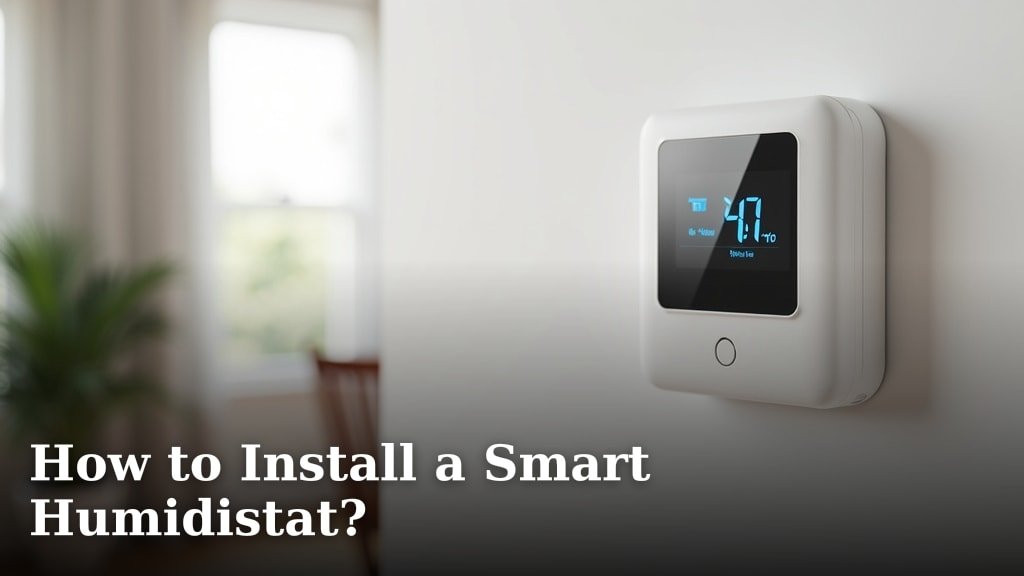
Installing Your New Smart Humidistat
You’ve chosen a smart humidistat. Great move! This simple device can transform your home’s air quality and comfort. Think of it as the **brain for your home’s moisture levels**, working smarter than a basic dial. The installation process is straightforward. You can do this in under an hour with a little patience. Let’s walk through each step so you can breathe easier.
Before You Begin: What You Need to Know
First, let’s make sure you’re prepared. Safety and preparation are key. You don’t want any surprises halfway through. Most smart humidistats are designed for DIY installation, but your home’s specific setup matters.
Check Your HVAC System Compatibility
Before buying or installing, **check your system’s voltage**. Most residential systems use low-voltage wiring (24 volts). You’ll find this listed on your old thermostat or furnace. A smart humidistat typically requires a **C-wire (common wire)** for constant power. Don’t have one? Some models offer battery backup or power-stealing options. It’s always best to verify in the product manual.
Gather Your Tools and Materials
You won’t need a full toolbox. Here’s what we found most installers keep handy:
- A small flat-head and Phillips screwdriver.
- A drill with a small bit (for pilot holes).
- Your new smart humidistat and its mounting hardware.
- A smartphone or tablet with the manufacturer’s app.
- A flashlight, just in case your wiring area is dark.
Having everything at hand makes the process smooth. You’ll thank yourself later.
Step-by-Step: The Physical Installation
We’ll break this into manageable parts. Don’t rush. **Turn off your HVAC system’s power** at the breaker before touching any wires. This is non-negotiable for safety.
Removing the Old Humidistat or Thermostat
Gently pull off the faceplate of your old device. Underneath, you’ll see a set of wires connected to labeled terminals (like W, Y, G, R). **Take a clear picture** of the wiring with your phone. This is your lifeline if you get confused later. Label each wire using the stickers that came with your new unit if they’re different colors. Unscrew the wires and remove the old backplate.
Mounting the New Backplate
Your new smart humidistat will come with a mounting plate. Hold it against the wall. Use a small level to make sure it’s straight. Mark the screw holes with a pencil. Drill small pilot holes, then secure the plate with the provided screws. It should feel solid against the wall, with no wobble.
Wiring It All Up
Now, for the puzzle part. Refer to that **photo you took earlier**. Connect each labeled wire to the corresponding terminal on the new backplate. It’s like matching letters. Most connectors are screw-down or push-in style. Ensure each wire is snug. A loose wire is a common reason a unit won’t power on. Double-check your work against the wiring diagram in the manual.
Powering Up and Connecting to Wi-Fi
This is the exciting part! It’s time to bring your smart humidistat to life. Everything should start lighting up.
Initial Power-On and App Setup
Restore power to your HVAC system at the breaker. The display on your humidistat should illuminate. **Download the manufacturer’s app** on your phone. Create an account and follow the in-app instructions to add a new device. It will typically have you scan a QR code on the device or enter a pairing code. Then, you’ll select your home Wi-Fi network and enter the password. The device connects, and you’re in business.
Configuring Your Comfort Settings
The app will guide you through setup. You’ll name your device (e.g., “Living Room”). Then, you’ll set your desired humidity level. The EPA suggests a range of **30% to 50% relative humidity** for health and comfort. Below 30% can dry out skin and respiratory passages. Above 50% encourages mold and dust mites (EPA). Most people find a sweet spot around 45%.
Post-Installation: Testing and Calibration
Your work isn’t done yet. Now we test and fine-tune. This ensures your new gadget actually works with your system.
Running a System Test
Using the app, turn on your humidifier or dehumidifier manually. Does it kick on? You should hear it activate. Monitor the app to see if the current humidity reading changes over the next hour. It might not move instantly. Be patient.
Calibrating the Humidity Sensor
Is your new reading different from your old hygrometer? It might need calibration. Many smart humidistats have a calibration offset setting in the app. You can adjust it by a few percentage points to match a trusted reference. For ultimate accuracy, you can place a **certified digital hygrometer** next to it for comparison.
Smart Features to Explore Next
Installation is complete, but the convenience is just starting. These are the features that make it “smart.”
Setting Schedules and Routines
You can now schedule humidity levels. Maybe you want it higher at night for better sleep and lower during the day. The app lets you create these schedules easily. Some systems can even integrate with your smart thermostat for synchronized climate control.
Monitoring and Getting Alerts
Receive notifications on your phone if humidity levels go too high or low. This is fantastic for catching issues like a stuck humidifier before they cause damage. You can view historical data to see trends in your home’s moisture levels over weeks and months.
Common Installation Challenges and Fixes
Ran into a snag? You’re not alone. Here are solutions to the most common hurdles.
Issue: The screen is blank after install.
Fix: **Check your circuit breaker.** Then, ensure the C-wire is securely connected. Some units need a small reset button press.
Issue: The app can’t find the device.
Fix: Make sure your phone is on the same Wi-Fi network you’re connecting the humidistat to. Move closer to your router during setup. Restart your phone’s Wi-Fi.
Issue: The humidity reading seems way off.
Fix: Allow 24 hours for the sensor to acclimate to your home’s environment. If it’s still off, use the calibration feature in the app.
Your Smart Humidistat Installation Checklist
Use this final checklist to confirm everything is done. You’ll feel confident knowing each step is covered.
- Power is off at the breaker before starting any wiring.
- Old wiring photo taken and wires labeled correctly.
- All wire connections are snug and matched to the correct terminals.
- Device powers on and connects to Wi-Fi successfully via the app.
- System tested—humidifier turns on/off from the app.
- Schedules and alerts are set up to match your routine.
Choosing the Right Smart Humidistat for Your Home
Not all smart humidistats are created equal. Your choice depends on your existing system, budget, and desired features. We found that most fall into a few key categories. Here’s a quick comparison to help you decide.
| Feature | Basic Model | Mid-Range Model | Premium Model |
|---|---|---|---|
| Connectivity | Wi-Fi only | Wi-Fi + Zigbee/Z-Wave | Wi-Fi + Multiple Hubs |
| Display | Simple LCD | Color touchscreen | HD touchscreen |
| Scheduling | Basic daily schedule | Custom daily/weekly | AI-based adaptive |
| Voice Control | Limited or none | Alexa & Google Assistant | All major platforms |
| Best For | Simple, reliable control | Most homeowners | Full smart home integration |
For most homes, a **mid-range model** offers the best balance of price and features. If you already have a smart home hub, check for compatibility. A device that plays well with your existing setup will be much more useful.
Why a Smart Humidistat Is Worth the Effort
Yes, installation takes a little time. But the payoff is immediate and long-term. You gain **precise control over your indoor environment**, which is key for health. Consistent humidity helps reduce static electricity, preserves wood furniture, and can even make your home feel warmer at lower temperatures. According to the CDC, maintaining proper humidity can reduce the viability of some viruses and bacteria in the air. It’s an upgrade for your comfort and your well-being.
Now that it’s installed, you can relax. Let your new smart humidistat do the work. You’ve earned the comfort.
Conclusion
You now have a clear roadmap for installing your smart humidistat. We covered the essential steps: from preparing your tools and checking compatibility to wiring it up and connecting it to your app. The process, while involving some wiring, is very manageable for a DIY project. Remember, safety first and always turn off the power before touching any wires. Once installed, you’ll enjoy precise control over your home’s comfort and health. Your next step is to gather your tools, take that first photo of your old wiring, and begin the installation with confidence. Let’s get your air quality optimized.
Frequently Asked Questions
How long does it take to install a smart humidistat?
Most installations take under an hour. If you have all your tools ready and take your time with the wiring, it’s a straightforward afternoon project. Don’t rush; careful work leads to a successful setup.
Can I install a smart humidistat without a C-wire?
Yes, some models offer alternatives. Check if your unit has battery backup or uses power-stealing technology. Always verify the manufacturer’s specifications for your specific device before starting the installation.
What if my new humidistat won’t connect to my Wi-Fi?
Ensure your phone is on the same Wi-Fi network during setup. Move closer to your router and restart your phone’s Wi-Fi. If the problem continues, check for firmware updates in the manufacturer’s app or consult their support guide.
How often should I calibrate my smart humidistat?
Calibration isn’t needed often. We recommend checking it against a trusted hygrometer once after installation. If the readings are consistent, you may not need to recalibrate unless you notice significant drift over time.
Do I need to turn off the HVAC power to change settings?
No, you do not. Once installed, all adjustments are made through the app or the device’s interface. You only need to turn off the power at the breaker for the initial physical installation or if you need to rewire it.
