
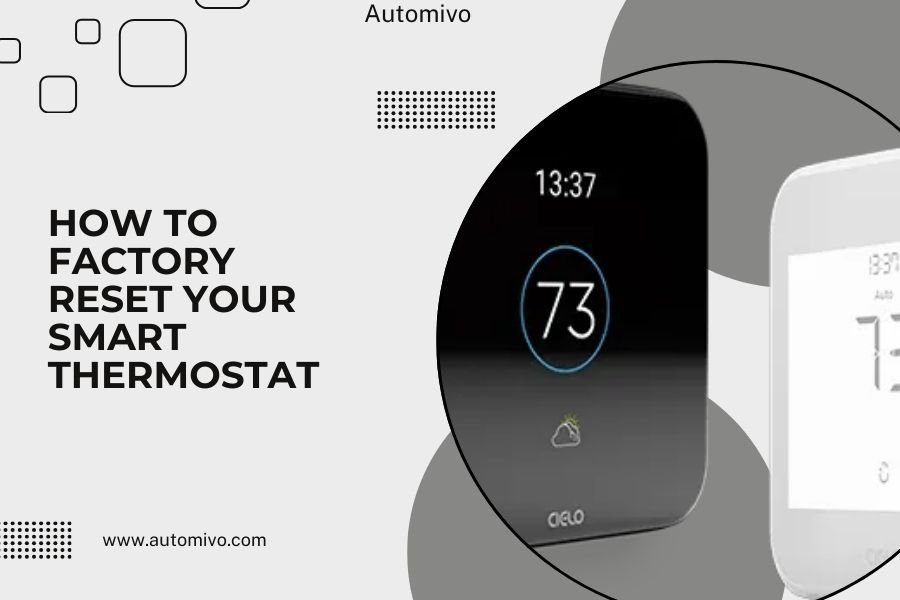
A factory reset erases all your smart thermostat’s settings and returns it to original defaults, which usually involves holding the reset button for 10-15 seconds.
Most smart thermostats can be factory reset through the device menu or by pressing and holding specific button combinations for several seconds.
When You Need to Factory Reset Your Smart Thermostat
Your smart thermostat might need a fresh start. Maybe it’s acting up, won’t connect to Wi-Fi, or you’re moving and want to clear your personal data.
I found that most thermostat issues stem from software glitches or connection problems. A factory reset often fixes these faster than troubleshooting individual settings.
Common Signs You Need a Reset
Watch for these red flags that suggest your thermostat needs a reset:
- Won’t connect to your home Wi-Fi network
- App shows “offline” constantly
- Temperature readings seem way off
- Buttons or touchscreen don’t respond
- Heating or cooling cycles act erratically
- Can’t update firmware or install new features
Before You Reset: Try These Quick Fixes
Don’t jump straight to factory reset. Try these simple steps first:
- Restart your Wi-Fi router
- Check if your thermostat needs new batteries
- Clean the screen and sensors with a soft cloth
- Verify your HVAC system breaker hasn’t tripped
How to Factory Reset Popular Smart Thermostat Brands
Each brand has its own reset method. Here’s what I found works for the most common models:
Nest Thermostat Reset Steps
Google Nest thermostats have different reset procedures based on the model year.
Nest Learning Thermostat (3rd and 4th Gen)
Press and hold the thermostat display for about 10 seconds. The screen will turn off, then back on. You’ll see a reset confirmation menu.
Navigate to “Reset” and select “All Settings.” Your Nest will restart and show the initial setup screen.
Nest Thermostat E
Hold down the thermostat ring for 10 seconds. The display will go dark, then light up again with reset options.
Choose “Reset” from the menu, then confirm by selecting “All Settings.”
Ecobee Smart Thermostat Reset
Ecobee makes the process pretty straightforward through their menu system.
Go to Main Menu > Settings > Reset. You’ll see options for partial or complete reset. Choose “Reset All” for a full factory reset.
The thermostat will ask you to confirm. Select “Yes” and wait about 2 minutes for the process to complete.
Ecobee Hard Reset Method
If the menu won’t respond, try this backup method. Remove the thermostat from its wall plate. Look for a small reset button on the back.
Hold the reset button for 5 seconds while reconnecting to the wall plate. The screen should show the setup wizard.
Honeywell Smart Thermostat Reset
Honeywell has several smart thermostat lines. The reset steps vary slightly between models.
Honeywell T6 and T9 Series
Press and hold the Menu and Sleep buttons together for 5 seconds. The display will show “Factory Reset” as an option.
Use the up/down arrows to select it, then press Select to confirm.
Honeywell RTH9585WF
This older Wi-Fi model needs a different approach. Hold the up and down arrow buttons simultaneously for 10 seconds.
You’ll see “Factory Reset” appear on screen. Press the center button to confirm.
Step-by-Step Reset Process for Any Brand
Don’t see your exact model above? This general approach works for most smart thermostats.
Method 1: Menu-Based Reset
Most modern smart thermostats hide the reset option in their settings menu.
Look for Settings, System, Advanced, or Admin menus. The reset option might be called “Factory Reset,” “Restore Defaults,” or “Clear All Data.”
Navigate through these steps:
- Find the main settings or system menu
- Look for reset, restore, or advanced options
- Select factory reset or similar option
- Confirm your choice when prompted
- Wait for the restart process to finish
Method 2: Physical Button Reset
When software menus won’t work, physical buttons usually will.
Look for a reset button, or try holding the main display/power button for 10-15 seconds. Some models require pressing multiple buttons at once.
Common Button Combinations
Try these combinations if a single button doesn’t work:
- Hold up + down arrows together
- Press menu + home buttons simultaneously
- Hold power + select buttons for 10 seconds
- Press and hold the center dial or display
What Happens During a Factory Reset
Think of a factory reset like moving out of an apartment. You’re taking all your stuff with you and leaving it exactly like you found it.
The reset process erases these settings:
- Wi-Fi network passwords and connections
- Your heating and cooling schedules
- Temperature preferences and setpoints
- Smart home integrations (Alexa, Google, etc.)
- User accounts and app connections
- Custom names and room assignments
What Stays the Same
Your thermostat’s core functions remain intact. The basic heating and cooling controls still work. The reset doesn’t damage your HVAC system or wiring.
After the Reset: Setting Up Your Thermostat
Your thermostat will act like it’s brand new. You’ll need to go through the initial setup process again.
Initial Setup Steps
Follow these steps to get your thermostat working again:
- Set your current time and date
- Connect to your home Wi-Fi network
- Download the manufacturer’s app on your phone
- Create or log into your account
- Configure your heating and cooling preferences
- Set up your weekly schedule
- Test both heating and cooling modes
Testing Your System
After setup, run a quick test. Set the temperature a few degrees higher than current room temperature. You should hear your heating system start within a few minutes.
Then try cooling mode by setting it a few degrees lower. Make sure both systems respond properly.
Troubleshooting Reset Problems
Sometimes the reset process doesn’t go smoothly. Here’s what to try when things go wrong.
Reset Button Won’t Work
If holding buttons doesn’t trigger a reset, check these possibilities:
- Low battery power (replace batteries if removable)
- Loose wiring connection behind the thermostat
- Tripped circuit breaker for your HVAC system
- Frozen or crashed software requiring power cycle
Power Cycling Your Thermostat
Turn off power to your HVAC system at the breaker box. Remove your thermostat from its wall mount for 30 seconds.
Reinstall the thermostat and turn the breaker back on. This often unfreezes stuck software.
Reset Completed But Issues Remain
If problems persist after a factory reset, you might have hardware issues or wiring problems.
I found that persistent issues usually point to these root causes:
- Incorrect wiring from original installation
- Incompatible thermostat for your HVAC system
- Failing components in your heating or cooling equipment
- Weak Wi-Fi signal in your thermostat’s location
Preventing Future Reset Needs
You can avoid many thermostat problems with basic maintenance and smart usage habits.
Regular Maintenance Tips
Keep your smart thermostat running smoothly with these simple steps:
- Clean the display and sensors monthly
- Replace batteries annually (if applicable)
- Update firmware when notifications appear
- Keep the area around your thermostat clear
- Check Wi-Fi connection strength occasionally
Smart Usage Habits
Treat your smart thermostat gently. Don’t press buttons too hard or tap the screen aggressively.
Avoid rapid temperature changes that stress your HVAC system. Gradual adjustments work better and last longer.
When to Call a Professional
Some situations need expert help. Don’t try to fix everything yourself.
Call an HVAC technician if you experience:
- Repeated failures after multiple resets
- Heating or cooling system won’t start
- Strange noises from your HVAC equipment
- Burning smells or electrical issues
- Thermostat display completely dead
Warranty Considerations
Check your warranty before attempting complex troubleshooting. Some manufacturers void warranties if you open the device or modify wiring.
Many smart thermostats come with 2-5 year warranties that cover defects and software issues.
Conclusion
Factory resetting your smart thermostat isn’t rocket science. Most models reset with a simple button hold or menu selection. The key is knowing your specific brand’s method and following the steps carefully.
Remember to try simple troubleshooting before jumping to a full reset. Often, a quick restart or Wi-Fi reconnection solves the problem without erasing all your settings.
When you do need to reset, take your time with the setup process. Test your heating and cooling systems afterward to make sure everything works properly. Your smart thermostat should run smoothly for years with basic care and maintenance.
Can I reset my smart thermostat without losing my schedules?
Most thermostats offer a “soft reset” or “restart” option that preserves your settings. Look for “Restart” instead of “Factory Reset” in your thermostat’s menu. A complete factory reset always erases all personal settings and schedules.
How long does a factory reset take to complete?
The reset process typically takes 1-3 minutes for most smart thermostats. The device will restart automatically and show the initial setup screen when finished. Some older models might take up to 5 minutes to complete the reset cycle.
Will resetting my thermostat affect my HVAC system warranty?
No, factory resetting your thermostat won’t void your HVAC system warranty. The reset only affects the thermostat’s software settings, not your heating or cooling equipment. Your HVAC warranty remains intact regardless of thermostat resets.
Why does my thermostat keep requiring resets every few months?
Frequent reset needs usually indicate underlying issues like weak Wi-Fi signal, outdated firmware, or incompatible wiring. Check your internet connection strength and update your thermostat’s software. If problems continue, consult an HVAC professional about potential wiring issues.
Do I need to remove my thermostat from the wall to reset it?
Most smart thermostats can be reset without wall removal using menu options or button combinations. Only remove the device if other methods fail or if you need to access a physical reset button located on the back of the unit.
