
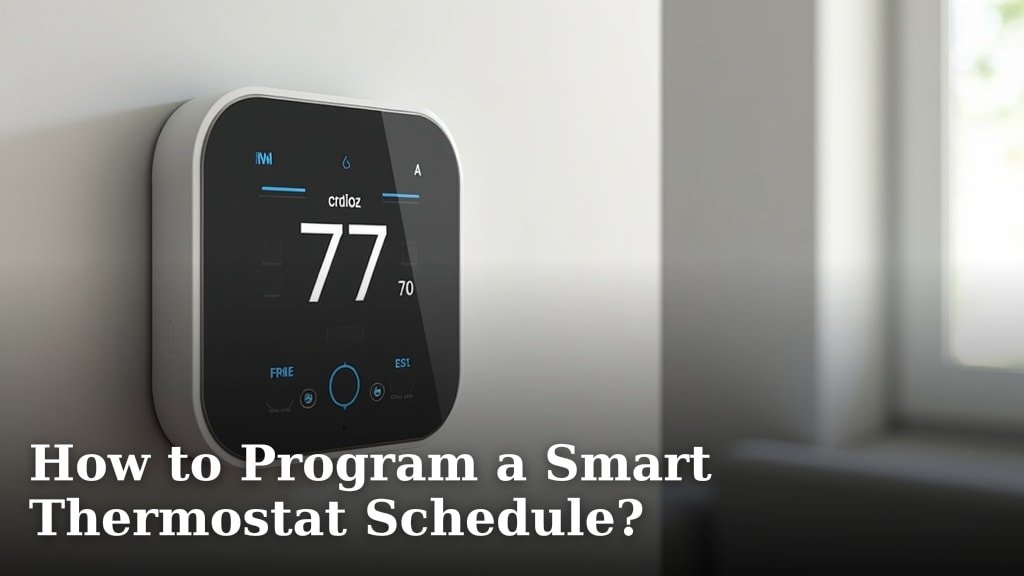
Programming a smart thermostat schedule is surprisingly straightforward when you know the steps. Most smart thermostats use an app or on-device interface to help you set your desired temperatures for different times of day and days of the week. This allows for automated comfort and savings.
Setting up your schedule lets your home automatically adjust to your routine. You can ensure your home is warm when you wake up and cool while you’re away. We found that a good schedule helps you save energy without sacrificing comfort.
TL;DR:
- Smart thermostats allow scheduled temperature changes.
- Most models use an app or device screen.
- You set temperatures for different times and days.
- This automation saves energy and boosts comfort.
- It’s easier than you might think to set up.
Ready to get started? We’ll walk you through exactly how to program your smart thermostat schedule, step by step.
Setting Up Your Smart Thermostat Schedule
Crafting a smart thermostat schedule helps you manage your home’s temperature with ease. It’s about telling your home when to be warm, when to be cool, and when to save energy. Think of it as creating a personalized climate plan for your living space.
The primary goal is to match your home’s heating and cooling to your daily life. Why pay to heat an empty house? Or shiver when you first wake up? A good schedule solves these issues.
Understanding Your Daily Routine
Before you even touch your thermostat, take a moment to think about your typical week. When are you usually home? When are you away? Your schedule should reflect these patterns for maximum comfort and savings.
This initial thought process is key. We found that users who map out their routines first tend to have more successful and energy-efficient schedules.
Mapping Your Week
Grab a pen and paper, or even just open a note on your phone. Jot down the typical times you and your family are home. Consider weekdays and weekends separately, as they often have different routines.
- When do you wake up?
- When do you leave for work/school?
- When do you return home?
- When do you go to bed?
- Are there consistent times you’re away on weekends?
This quick exercise will give you a clear roadmap for creating your temperature schedule.
Accessing Your Thermostat’s Scheduling Features
Most smart thermostats offer two main ways to program a schedule: through a dedicated mobile app or directly on the device itself. Both methods usually provide a friendly interface to guide you.
We found that using the app is often easier due to the larger screen and intuitive drag-and-drop features. However, the device interface works just as well if you prefer that method.
Using the Mobile App
If you’re using the mobile app, make sure it’s installed on your smartphone or tablet and that your thermostat is connected to your home’s Wi-Fi. Many apps will have a clear “Schedule” or “Program” option right on the main screen.
Tap this option to begin building your schedule. You’ll likely see a visual representation of the week, often broken down by day and time slots.
Programming Directly on the Device
For on-device programming, navigate to the main menu of your smart thermostat. Look for options like “Schedule,” “Program,” or “Settings.” Use the up/down or left/right arrows and the selection button to move through the menus.
While a bit smaller, the on-device interface is designed to be user-friendly. Don’t be afraid to poke around; you can always reset if needed.
Setting Daily Temperature Points
The core of smart thermostat scheduling involves setting different temperature “points” throughout the day. These points tell your thermostat what temperature to aim for at specific times.
Think of each point as a command: “At 6 AM, change to 70 degrees.” You’ll usually set at least four points per day: Wake, Away, Home, and Sleep.
Typical Schedule Points and What They Mean
Here’s a breakdown of common schedule points and why they matter:
| Schedule Point | Recommended Time | Temperature Strategy |
|---|---|---|
| Wake | 30-60 mins before you wake | Comfortable temp to start your day. |
| Away | When everyone leaves the house | Energy-saving temp (higher in summer, lower in winter). |
| Home | 30-60 mins before you return | Comfortable temp for evening activities. |
| Sleep | When you go to bed | Energy-saving or preferred sleeping temp. |
Adjust these times and temperatures to fit your personal comfort and energy-saving goals. Many people prefer cooler temperatures for sleeping (National Institute of Environmental Health Sciences).
Flesh Out Your Schedule: Weekdays vs. Weekends
Once you understand the basic points, you’ll apply them to your whole week. Most smart thermostats allow you to create different schedules for weekdays and weekends, which is incredibly useful.
This flexibility helps you avoid heating or cooling an empty house during working hours, but still ensures comfort when you’re home on Saturday afternoon.
Creating Your Weekday Schedule
Start with a typical weekday. Set your “Wake” time and temperature. Then, set your “Away” time for when the house is empty. Schedule the “Home” temperature so it’s comfortable a little before you usually return. Finally, set your “Sleep” temperature.
Many thermostats let you copy this schedule to other weekdays. This saves a lot of time and ensures consistency.
Building Your Weekend Schedule
Weekends often have a more relaxed pace. You might wake up later or spend more time at home. Adjust your “Wake” and “Away” (if applicable) points accordingly. You might even omit an “Away” period if you’re home all day.
The goal is to align your home’s climate with your actual presence and activities. It’s your home, your rules!
Optimizing for Energy Savings and Comfort
The beauty of a smart thermostat schedule is its ability to balance comfort with energy efficiency. Small adjustments can lead to significant savings over time (Energy.gov).
We found that setting back your thermostat by 7-10 degrees Fahrenheit for 8 hours a day can save you up to 10% on your heating and cooling costs.
Finding Your “Away” Temperature Sweet Spot
During “Away” periods, the room doesn’t need to be perfectly comfortable. In summer, you can set the temperature higher (e.g., 78-82°F). In winter, you can set it lower (e.g., 60-64°F).
The key is to find a range that prevents pipes from freezing in winter and keeps your home from becoming an oven in summer, without wasting energy on an empty house.
Pre-Heating or Pre-Cooling for Comfort
Smart thermostats are called “smart” for a reason. Many have an “early start” or “smart recovery” feature. This allows the thermostat to learn how long it takes to reach your desired temperature.
For example, if you want your home at 70 degrees by 6 AM, “smart recovery” will start heating at 5:30 AM (or whatever time is needed) to hit that target precisely. This means you wake up comfortable without running the system all night.
Reviewing and Adjusting Your Schedule
Once you’ve set your initial schedule, it’s not set in stone. Your life changes, seasons change, and your preferences might evolve. Regularly review your schedule to make sure it’s still working for you.
Think of it like tuning a guitar. A little tweak here and there makes all the difference for perfect harmony.
Seasonal Adjustments
As seasons change, your ideal temperatures will too. You’ll likely want different “Away” temperatures in summer versus winter. Also, your “Wake” and “Sleep” temperatures might shift.
For example, 72°F might feel great in summer, but you might prefer 68°F in winter. Make a note to revisit your schedule with each major season change.
Responding to Lifestyle Changes
Did you get a new job with different hours? Is someone now working from home? Life happens! Your smart thermostat schedule should adapt to these changes.
It only takes a few minutes to modify a time or temperature setting in the app or on the device, ensuring your home always reflects your current lifestyle.
Checklist for Programming Your Schedule
Ready to make your smart thermostat work for you? Use this handy checklist to guide you:
- Understand your typical daily and weekly routines.
- Decide if you’ll use the mobile app or the device screen.
- Set your “Wake” temperature and time.
- Program your “Away” temperature (energy-saving).
- Choose your “Home” temperature for comfort.
- Set your “Sleep” temperature (often cooler).
- Copy schedules to similar days (e.g., all weekdays).
- Save your new schedule!
You’re now well on your way to a perfectly scheduled, comfortable, and energy-efficient home!
Conclusion
You now have all the tools to take control of your home’s climate. Programming your smart thermostat schedule means enjoying comfort when you need it and saving energy when you don’t. By understanding your routine and applying thoughtful temperature settings, you create a home environment that works for you.
We found that a well-programmed schedule not only lowers your utility bills but also adds a layer of effortless convenience to your daily life. Don’t let your smart thermostat just be “smart.” Make it truly intelligent by setting up a schedule today. Your comfort and your wallet will thank you.
Frequently Asked Questions
What if my schedule changes frequently?
Most smart thermostats let you easily overwrite your schedule temporarily without deleting it. You can manually adjust the temperature for a few hours. Then, your thermostat will automatically revert to your programmed schedule afterward.
Can I set different schedules for different zones in my home?
Yes, if you have a zoned HVAC system with multiple smart thermostats, you can program individual schedules for each zone. This allows for personalized comfort and efficiency in different areas of your home, catering to specific needs.
How do I know what temperatures are best for saving energy?
For heating, aim for 68°F when home and 60-64°F when away or asleep. For cooling, target 78°F when home and 80-82°F when away. Small adjustments of 7-10 degrees can lead to significant savings.
What if my smart thermostat doesn’t have an “Away” specific setting?
Many thermostats simply allow you to set multiple “periods” throughout the day. You can create an “Away” period by setting a lower temperature during your typical work hours. Just name it something descriptive like “Mid-Day Savings” if you wish.
Should I turn my smart thermostat off when I’m gone for a long vacation?
For longer trips, it’s generally best to set your thermostat to an energy-saving “vacation” mode or a moderate setting (e.g., 55°F in winter, 85°F in summer). This helps prevent issues like frozen pipes or excessive heat buildup without wasting energy.
