
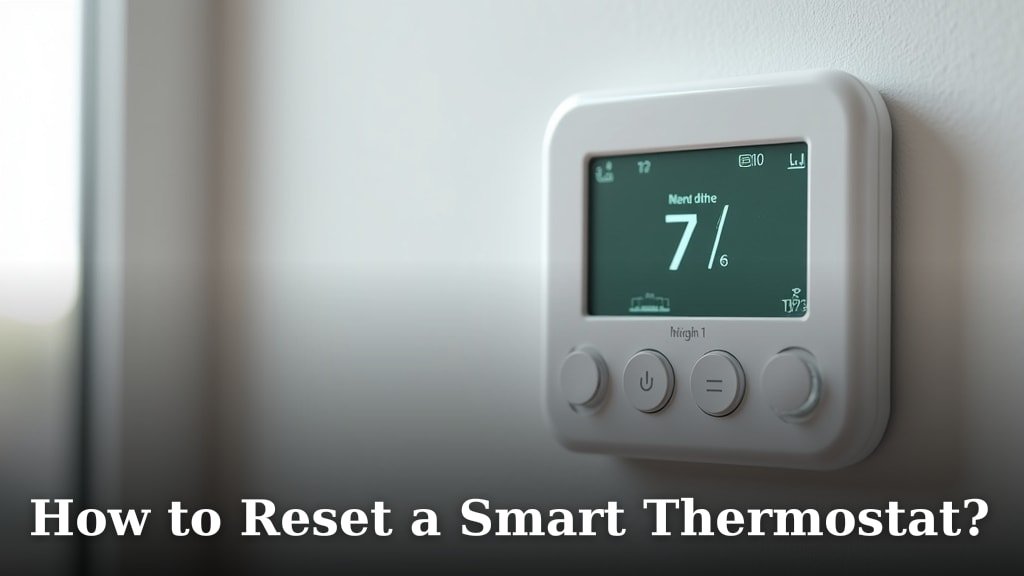
To reset a smart thermostat, you generally need to press and hold a specific button on the device itself, then confirm your choice. This process usually clears all your personalized settings and returns it to factory defaults, just like when you first bought it.
Sometimes your smart thermostat acts a little buggy, right? Maybe it’s not connecting to Wi-Fi, or your schedule isn’t saving. A quick reset can often fix these common headaches and get your system running smoothly again. It’s like giving your thermostat a fresh start when things get a bit wonky.
- How to perform a soft reset or restart.
- When a full factory reset is necessary.
- Finding the reset button on popular thermostat models.
- What data you might lose during a reset.
- Tips for setting up your thermostat again after a reset.
Ready to get your smart thermostat back in tip-top shape? Let’s walk through exactly how to reset a smart thermostat, step by step, so you can enjoy perfect comfort in your home once more.
Getting Your Smart Thermostat Back on Track
Sometimes, your smart thermostat needs a little nudge to perform its best. Understanding the different types of resets can help you pick the right fix for your specific issue.
Understanding Soft Resets vs. Factory Resets
There are generally two main ways to reset your smart thermostat: a soft reset (or restart) and a full factory reset. Each serves a different purpose, so choosing the correct one is important.
What is a Soft Reset or Restart?
Think of a soft reset like simply turning your computer off and on again. It’s a quick way to clear out any minor software glitches or temporary errors. Your personalized settings, schedules, and Wi-Fi connections usually remain untouched. This is often your first step when your thermostat is acting a little odd but isn’t completely broken.
When is a Factory Reset Necessary?
A factory reset is a much more drastic step. This process completely wipes all your personalized data and returns the device to its original, out-of-the-box state. You’ll lose all your schedules, temperature preferences, Wi-Fi network information, and any learned behaviors. You’d typically use a factory reset if you’re selling or giving away your thermostat, experiencing persistent bugs that a soft reset can’t fix, or if you’re having major connectivity problems.
How to Perform a Soft Reset on Your Smart Thermostat
Most smart thermostats make soft resetting quite straightforward. This usually involves a simple button press or a quick menu navigation. It’s a good first troubleshooting step.
Here’s a general approach you can try:
- Look for a restart option in the device’s menu. Many thermostats have a “Settings” or “System” menu where you can find a “Restart” or “Reboot” command.
- Press and hold a specific button combo. Some models require you to hold down a main button or a combination of buttons for a few seconds. The screen might go blank and then power back on.
- Temporarily remove power. If there’s no clear menu option or button, you can sometimes cut power to the thermostat. This involves flipping the circuit breaker that controls your HVAC system for about 30 seconds, then turning it back on. We’ve found this often acts like a restart for many electronic devices.
A soft reset is quick and painless. It usually resolves minor issues without requiring you to reconfigure everything. Did that fix your issue? Great! If not, a factory reset might be needed.
How to Perform a Factory Reset on Popular Smart Thermostat Models
A factory reset completely deletes all your personal settings. It’s a bigger step, but sometimes it’s the only way to resolve significant problems. The exact steps vary by brand and model.
You’ll often need to find a small, recessed button or navigate through several menu screens. Having your thermostat’s manual handy is always a good idea.
Finding the Reset Button or Menu Option
Here’s a general guide for some common smart thermostat brands. Keep in mind that specific models within these brands might have slightly different procedures. We recommend cross-referencing with your user manual if you have any doubts.
| Thermostat Brand | General Factory Reset Steps |
|---|---|
| Nest Thermostat | Go to Settings > Reset > All Settings. Confirm the reset. |
| Ecobee Thermostat | Navigate to Main Menu > Settings > Reset > Reset All Settings. Confirm. |
| Honeywell Home/Lyric | Often involves holding down specific buttons (e.g., Fan and Up arrow) for a few seconds OR navigating to Menu > Reset Default Setup. |
| Emerson Sensi Thermostat | Generally located in the Advanced Settings or through a specific button combination found in the manual. |
If your brand isn’t listed, or if these steps don’t seem to match your specific model, a quick search online for “[Your Thermostat Model] factory reset” should provide precise instructions. Your manufacturers’ websites are usually the best source for this information.
What You Lose During a Smart Thermostat Reset
Performing a factory reset is a big commitment because it erases much of what makes your smart thermostat “smart.” It’s important to know what you’ll be giving up before you proceed.
- Your Wi-Fi network credentials: You’ll need to reconnect your thermostat to your home Wi-Fi network from scratch.
- Scheduled programs: All your custom heating and cooling schedules will be gone. You’ll need to re-enter them.
- Learned preferences: Many smart thermostats learn your habits over time. This data will be erased, and the learning process will start over.
- Home/Away Assist settings: If your thermostat uses geofencing to know when you’re home or away, those settings will need to be reconfigured.
- System settings: Any fine-tuning for your HVAC system, like fan modes or swing temperatures, will revert to default.
- Registration with smart home platforms: You might need to re-link your thermostat to your Google Home, Amazon Alexa, or Apple HomeKit accounts.
Essentially, you’re rolling back its memory to day one. This clean slate can fix deep-seated issues, but it does mean a bit of setup work afterwards.
Your Post-Reset Checklist: Getting Your Thermostat Online Again
After a factory reset, your smart thermostat is like a brand-new device. You’ll need to set it up again as if it were fresh out of the box. Don’t worry, it’s usually a straightforward process.
Here’s a checklist to guide you through the post-reset setup:
- Connect to Wi-Fi: The first step is almost always connecting your thermostat to your home’s Wi-Fi network. You’ll typically do this directly on the thermostat screen.
- Re-link to app: Open your thermostat’s companion app on your phone or tablet. You’ll likely need to re-add the device or log in again and follow the on-screen prompts to register it.
- Input schedules: Re-enter your desired heating and cooling schedules. This is a good time to optimize them if your old schedule wasn’t perfect.
- Adjust preferences: Set your preferred temperature ranges, fan settings, and any other comfort preferences.
- Re-enable smart features: If you use features like geofencing (Home/Away Assist), energy-saving modes, or integration with other smart home devices, you’ll need to re-enable and configure them.
- Test the system: After setup, test your heating and cooling. Set the temperature significantly higher and lower than the current room temperature to ensure your HVAC system responds correctly.
We found that taking a few minutes to jot down your preferences and Wi-Fi password before a reset can save you time during this re-setup phase.
When to Call for Support: Knowing When a Reset Isn’t Enough
While a reset can fix many common smart thermostat problems, there are times when it’s not the answer. If you’ve tried both soft and factory resets and your issue persists, it might indicate a more serious problem. Don’t hesitate to reach out for help when you’re stuck.
Consider contacting support if:
- The thermostat won’t power on at all after a reset.
- It consistently fails to connect to your Wi-Fi, even after re-entering the correct password.
- Your HVAC system isn’t responding to the thermostat’s commands (e.g., it’s not turning on the heat or AC).
- You’re getting persistent error codes that you can’t resolve.
- The screen is unresponsive or displaying strange graphics.
These issues could point to a hardware fault in the thermostat itself, a problem with your home’s wiring, or an issue with your HVAC system. In these cases, it’s best to contact the thermostat manufacturer’s customer support or a qualified HVAC technician. They have specific diagnostic tools and expertise to pinpoint the problem. Many experts say that knowing when to call a professional can save you a lot of time and frustration (Better Business Bureau).
Conclusion
Resetting your smart thermostat can feel daunting, but it’s a powerful tool for troubleshooting. Whether you need a quick soft reset to clear a minor glitch or a full factory reset for persistent problems, understanding the steps is key. You’ve learned what data you might lose and how to get everything back online again.
Don’t let a finicky thermostat disrupt your home comfort. Use these steps to confidently restore your device to optimal performance. If issues continue, you’ll also know when it’s time to call in the professionals.
Frequently Asked Questions
How often should I reset my smart thermostat?
You shouldn’t need to reset your smart thermostat regularly. Only perform a soft reset if you notice minor issues, like incorrect readings or connection problems. A factory reset is reserved for more serious, persistent issues or when you’re preparing to sell the device.
Will resetting my thermostat damage it?
No, resetting your smart thermostat, whether a soft or factory reset, will not damage the device. It’s a built-in troubleshooting function designed to resolve software glitches or return the unit to its default settings safely. It’s like restarting your computer.
Can I reset my smart thermostat remotely using the app?
Some advanced smart thermostats allow you to perform a soft reset or restart through their companion mobile app. However, a full factory reset almost always requires physical interaction with the device itself. This is a security feature to prevent accidental data erasure.
What if I forget my Wi-Fi password after a factory reset?
After a factory reset, you’ll need your Wi-Fi password to reconnect your thermostat to your home network. If you’ve forgotten it, you’ll need to find it on your Wi-Fi router, through your internet service provider, or by checking other connected devices in your home.
Will my energy usage data be affected by a reset?
A factory reset will typically erase all stored historical energy usage data directly on the thermostat and within the associated app. A soft reset usually retains this data, as it only clears temporary memory. If tracking energy usage is important, always check your app for cloud-stored data before a factory reset.
