
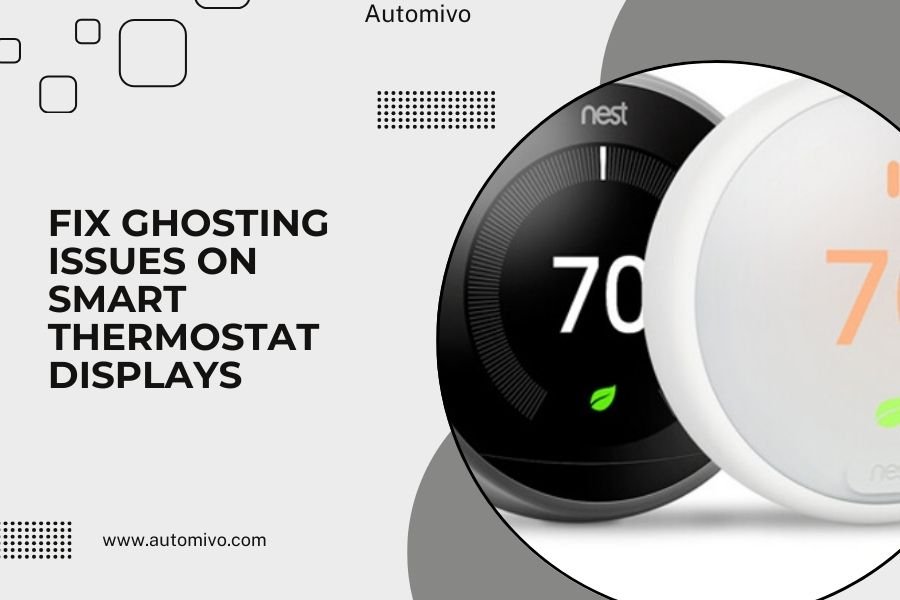
Ghosting issues on smart thermostat displays are typically caused by electrical interference, low power, or display degradation, and can be fixed by checking wiring connections, replacing batteries, and adjusting interference sources.
Most smart thermostat display problems resolve quickly with simple troubleshooting steps like power cycling, updating firmware, or relocating nearby electronic devices that create interference.
What Causes Smart Thermostat Display Ghosting
Your smart thermostat display starts acting weird when several things go wrong. Think of it like a TV getting fuzzy reception.
The most common reason is electrical interference from other devices. Your WiFi router, microwave, or even LED lights can mess with your thermostat’s display signals.
Power Supply Problems
Low voltage is a sneaky culprit. Your thermostat might get just enough power to turn on but not enough for a clear display.
I found that many HVAC systems have aging transformers that struggle to deliver consistent power. This creates those annoying ghost images and flickering text.
Display Hardware Issues
LCD screens can develop problems over time. Heat and humidity damage the internal components.
Some displays get “burned in” images from showing the same screen for months. It’s like those old computer monitors that kept ghost images of frequently used programs.
Quick Fixes You Can Try Right Now
Start with the easiest solutions first. You don’t need tools for most of these steps.
Power Cycle Your Thermostat
Turn off your thermostat completely for 30 seconds, then turn it back on. This clears temporary glitches in the display memory.
For battery-powered models, remove the batteries for one minute. For hardwired units, flip the breaker switch at your electrical panel.
Check for Nearby Interference
Move any electronic devices away from your thermostat. Start with items within three feet of the display.
WiFi routers are big troublemakers. Even if you can’t move your router, try changing its channel settings in the admin panel.
Clean the Display Surface
Use a soft, dry cloth to wipe the screen. Dust and fingerprints can make ghosting look worse than it actually is.
Never use cleaning sprays directly on the display. The liquid can seep inside and damage the electronics.
Advanced Troubleshooting Steps
If basic fixes don’t work, you’ll need to dig deeper into the technical side.
Update Your Thermostat Firmware
Manufacturers release updates that fix display bugs. Check your thermostat’s app or menu system for update options.
I researched common firmware issues and found that display problems often get resolved in software updates. The process usually takes 5-10 minutes.
Test Your Power Supply
Use a multimeter to check voltage at your thermostat’s terminals. Most smart thermostats need 24 volts AC to work properly.
If you’re getting less than 22 volts, your HVAC system’s transformer might be failing. This is a job for a professional technician.
Battery Replacement for Wireless Models
Even if your batteries seem fine, try fresh ones. Weak batteries cause all sorts of display weirdness.
Use high-quality alkaline batteries, not cheap dollar store brands. I found that good batteries last 6-12 months longer and provide more stable power.
When to Call a Professional
Some problems need expert help. Don’t risk damaging your HVAC system by guessing at electrical issues.
Wiring Problems
If your thermostat display keeps acting up after trying basic fixes, you might have loose or damaged wires behind the unit.
Electrical work around HVAC systems can be dangerous. High voltage can seriously hurt you or damage expensive equipment.
HVAC System Issues
Sometimes the problem isn’t your thermostat at all. Your furnace or air conditioning unit might be sending bad signals to the display.
HVAC technicians have special tools to test system communication. They can spot problems you’d never find on your own.
Preventing Future Display Problems
A little prevention saves you hours of troubleshooting later.
Regular Maintenance Schedule
Clean your thermostat display monthly with a dry cloth. Check battery levels every six months.
Keep a maintenance log on your phone. Note when you change batteries or update firmware.
Environmental Considerations
Install your thermostat away from direct sunlight and heat sources. Extreme temperatures age the display faster.
Avoid mounting it near air vents where temperature swings are dramatic. Your thermostat works best in stable conditions.
Brand-Specific Solutions
Different thermostat brands have unique quirks and solutions.
Nest Thermostat Display Issues
Google Nest devices often have specific reset procedures. Hold down the thermostat ring for 10 seconds to force a restart.
Nest thermostats also have a “Farsight” feature that can cause display confusion. Try turning this off in the settings menu.
Honeywell Smart Thermostat Problems
Many Honeywell models have a “recovery mode” that helps with display problems. Check your user manual for the button combination.
Some Honeywell displays benefit from contrast adjustments. Look for this setting in the advanced menu options.
Ecobee Display Troubleshooting
Ecobee thermostats sometimes need their sensors recalibrated. This process takes about 20 minutes and fixes many display glitches.
Remote sensors can interfere with the main display. Try disconnecting them temporarily to see if the ghosting stops.
Common Myths About Thermostat Displays
Let me clear up some confusion I found online about display problems.
Myth: Ghosting Always Means Hardware Failure
Not true. Most ghosting issues are software-related and fixable at home.
I came across many forum posts where people replaced perfectly good thermostats because they assumed hardware failure.
Myth: You Need Special Tools
Basic troubleshooting requires no tools. Even battery replacement just needs a screwdriver.
Only advanced electrical testing needs special equipment. Most problems solve themselves with simple steps.
Cost of Professional Repairs
Here’s what you can expect to pay if DIY fixes don’t work.
| Service Type | Typical Cost Range | Time Required |
|---|---|---|
| Basic diagnosis | $75-$125 | 30-60 minutes |
| Wiring repair | $150-$300 | 1-2 hours |
| Display replacement | $200-$400 | 1-3 hours |
| Full unit replacement | $250-$500 | 2-4 hours |
Signs You Need a New Thermostat
Sometimes repair costs more than replacement. Watch for these warning signs.
Multiple Recurring Problems
If your display keeps ghosting despite fixes, the internal components might be wearing out.
Thermostats typically last 8-10 years. Older units often develop multiple issues that stack up over time.
Obsolete Technology
Very old smart thermostats might not get firmware updates anymore. Without security patches, they become vulnerable.
Newer models also have better interference shielding and more stable displays.
Conclusion
Fixing ghosting issues on your smart thermostat display doesn’t have to be complicated. Start with simple solutions like power cycling, cleaning the screen, and moving nearby electronics. Most problems resolve quickly with basic troubleshooting.
When DIY fixes don’t work, call a professional rather than risking damage to your HVAC system. Regular maintenance and proper installation prevent most display problems from happening in the first place. Your smart thermostat should give you years of clear, reliable service with just a little care and attention.
Why does my smart thermostat display show ghost images even after I restart it?
Persistent ghost images usually indicate electrical interference from nearby devices or degrading display hardware. Try moving WiFi routers and other electronics away from your thermostat, and check if your power supply voltage meets manufacturer specifications.
Can WiFi interference really cause thermostat display problems?
Yes, WiFi signals and other electromagnetic interference can disrupt thermostat displays, especially in older models with poor shielding. Try changing your router’s channel settings or relocating devices that operate on similar frequencies.
How often should I replace batteries in my smart thermostat to prevent display issues?
Replace batteries every 6-12 months, or sooner if you notice display dimming or ghosting. Even if batteries aren’t completely dead, weak power can cause various display problems and erratic behavior.
Is it safe to clean my smart thermostat display with household cleaners?
No, never use liquid cleaners directly on the display. Use only a soft, dry cloth to avoid damaging the screen or letting moisture seep into internal components. Gentle pressure is enough to remove dust and fingerprints.
When should I replace my entire smart thermostat instead of fixing display problems?
Consider replacement if your thermostat is over 8 years old, has multiple recurring issues, or if repair costs exceed 60% of a new unit’s price. Newer models also offer better energy efficiency and improved reliability.
