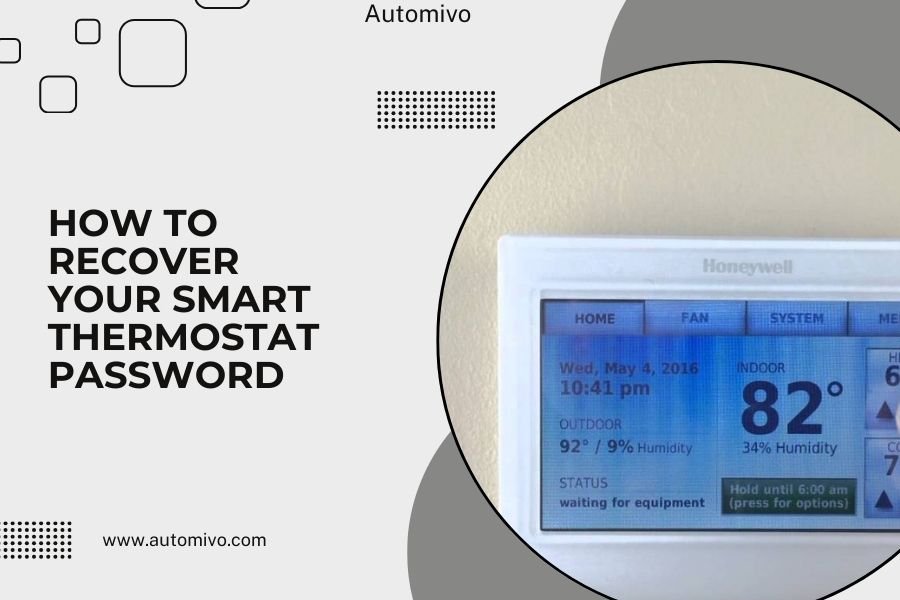
You can recover your smart thermostat password by using the “Forgot Password” option on your thermostat app or manufacturer’s website.
Most smart thermostats let you reset passwords through email verification, mobile app recovery, or by pressing the physical reset button on the device itself.
Quick Password Recovery Steps
Lost your thermostat password? Don’t panic. It happens to the best of us. You’re probably staring at your phone app right now, wondering how you’ll ever get back into your climate control system.
The good news is that every major smart thermostat brand has built-in recovery options. Let’s get you back in control of your home’s temperature fast.
Start With the Mobile App Method
Open your thermostat’s mobile app first. Look for “Forgot Password” or “Reset Password” on the login screen.
Tap that option. Enter the email address you used when setting up your account. Check your email within 5-10 minutes for a reset link.
Click the link in your email. It will take you to a page where you can create a new password. Make it something you’ll remember this time.
Try the Website Recovery Option
Can’t find the app option? Go to your thermostat manufacturer’s website instead.
Look for a “Sign In” or “Account” section. Click “Forgot Password” there too. The process works the same way as the mobile app.
Some people find the website version easier to navigate. Plus, you can type your new password on a real keyboard instead of fumbling with your phone screen.
Brand-Specific Recovery Methods
Different thermostat brands have slightly different approaches. Let me walk you through the most common ones I found online.
Nest Thermostat Password Recovery
Google Nest uses your Google account for everything. If you can’t remember your thermostat password, you’re really trying to recover your Google password.
Go to accounts.google.com and click “Forgot password.” Google will walk you through their recovery steps. This might involve answering security questions or getting a code on your phone.
Once you’re back into your Google account, your Nest app will work again automatically.
Honeywell Thermostat Recovery
Honeywell’s Total Connect Comfort app has its own password system. Open the app and tap “Forgot Password” on the login screen.
Enter your email address. Honeywell will send you a reset link within a few minutes. The link expires after 24 hours, so don’t wait too long to use it.
Ecobee Password Reset Process
Ecobee makes password recovery pretty straightforward. Go to their website or use the mobile app. Click “Forgot your password?” on the login page.
Type in your email address. Ecobee sends reset instructions right away. Follow the link and create your new password.
Carrier and Bryant Thermostats
These brands use the Carrier Home app. The password recovery works just like the others – tap “Forgot Password” and check your email.
One thing I found helpful: make sure you’re using the same email address you gave your HVAC installer when they set up your system.
Physical Reset Button Method
Sometimes the email recovery doesn’t work. Maybe you changed email addresses or your old email account got deleted. That’s when you need the physical reset approach.
Locating Your Reset Button
Most smart thermostats have a small reset button somewhere on the device. It’s usually on the back or bottom edge.
You might need to remove the thermostat from its wall mount to find it. Don’t worry – this won’t damage anything.
Performing a Factory Reset
Press and hold the reset button for 10-15 seconds. Some thermostats require you to hold it while the device is powering on.
The screen will usually show “Resetting” or something similar. Wait for it to finish completely.
After a factory reset, you’ll need to set up your thermostat again from scratch. This includes reconnecting to WiFi and creating a new account.
When Email Recovery Fails
What if you never get that password reset email? This frustrating situation happens more often than you’d think.
Check Your Spam Folder First
I know, I know. Everyone always says “check your spam folder.” But seriously, do it. Email filters can be overly aggressive with automated messages.
Look in your spam, junk, and promotional folders. Search for emails from your thermostat manufacturer’s domain.
Verify Your Email Address
Double-check that you’re entering the right email address. It needs to be exactly the same one you used when creating your thermostat account.
Try typing it slowly and carefully. Autocorrect sometimes “helps” in ways that actually make things worse.
Wait a Bit Longer
Some email systems are slower than others. Wait up to 30 minutes before assuming the reset email isn’t coming.
Server delays happen, especially during peak usage times or if the company’s email system is having issues.
Creating a Better Password System
Once you’re back into your thermostat account, let’s make sure this doesn’t happen again.
Use a Password Manager
Password managers save all your login information automatically. You only need to remember one master password instead of dozens.
Popular options include LastPass, 1Password, and Bitwarden. Most work on both phones and computers.
Write It Down Somewhere Safe
Old-school but effective. Write your thermostat password on a piece of paper and put it somewhere secure.
Some people tape it inside their home’s electrical panel or file it with their other home warranty documents.
Make Your Password Memorable
Create something you’ll actually remember. Use a phrase that means something to you, then add some numbers.
For example: “MyHouse72Degrees!” combines your home with your preferred temperature. Easy to remember but still secure.
Preventing Future Lockouts
Smart thermostats work best when you don’t have to think about logging in all the time.
Enable Biometric Login
Most thermostat apps support fingerprint or face recognition login. Set this up as soon as you regain access to your account.
Biometric login means you won’t need to type your password every time you open the app.
Stay Logged In
Many apps have a “Remember Me” or “Stay Logged In” option. Use it on your personal devices.
Just be careful about using this feature on shared tablets or family devices where other people might access your thermostat controls.
Update Your Recovery Email
Make sure your account has a current, working email address. Check your thermostat app’s account settings at least once a year.
If you change email providers, update your thermostat account right away. Don’t wait until you need password recovery to discover your old email doesn’t work anymore.
Getting Help from Support
Sometimes you need to call in reinforcements. Every thermostat manufacturer has customer support teams trained to help with password issues.
Gather Your Information First
Before calling support, collect your thermostat’s model number and serial number. You’ll usually find these on a sticker on the device itself.
Also have your home address and the email address you think you used for your account. This helps support verify your identity.
Be Patient with the Process
Support representatives need to verify you actually own the thermostat before helping with password recovery. This protects your privacy and security.
They might ask questions about your installation date, installer company, or account details. Answer as accurately as you can.
Security Considerations
While recovering your password, keep security in mind. Smart thermostats connect to your home network and can affect your privacy.
Change Default Settings
After regaining access, review your thermostat’s privacy and sharing settings. Turn off any features you don’t actually use.
Some thermostats share usage data with utility companies or manufacturers by default. You can usually opt out if you prefer.
Secure Your Home Network
Your thermostat is only as secure as your WiFi network. Make sure your home WiFi uses WPA3 or WPA2 security with a strong password.
Research shows that many smart home security issues start with weak WiFi passwords (National Institute of Standards and Technology).
Conclusion
Recovering your smart thermostat password doesn’t have to be a major headache. Most of the time, the “Forgot Password” feature in your mobile app or on the manufacturer’s website will get you back up and running in just a few minutes. If that doesn’t work, try the physical reset button or contact customer support for help.
Once you’re back in control of your climate system, take a moment to set up better password management. Use a password manager, enable biometric login, or write down your credentials somewhere safe. Your future self will thank you when you’re not locked out on the hottest day of summer or the coldest night of winter.
Can I recover my smart thermostat password without the original email address?
If you no longer have access to the email address used for your account, you’ll need to contact customer support directly. They can help verify your identity through other means and update your account email address.
How long do password reset links stay active?
Most thermostat manufacturers set password reset links to expire after 24 hours for security reasons. If your link has expired, simply request a new one through the app or website.
Will resetting my thermostat delete my programmed schedules?
A password reset won’t affect your schedules, but a factory reset will erase all your settings. If you must do a factory reset, write down your preferred schedules first so you can recreate them easily.
Why isn’t my thermostat app recognizing my WiFi password after a reset?
After a factory reset, your thermostat needs to reconnect to your home WiFi network. Make sure you’re entering your WiFi password correctly, not your thermostat account password. These are two different passwords for two different systems.
Can multiple family members have separate passwords for the same thermostat?
Most smart thermostats allow you to share access with family members through the main account rather than creating separate passwords. Look for “Share Access” or “Family Sharing” options in your app settings to invite other users.