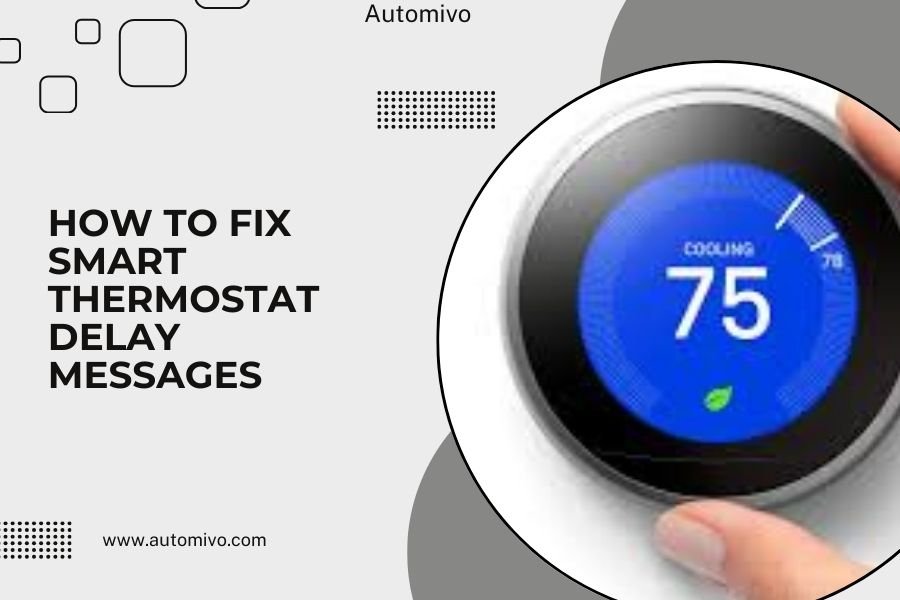
Smart thermostat delay messages usually appear when your device needs time to connect to Wi-Fi, update software, or sync with your HVAC system after changes.
You can fix most smart thermostat delay messages by checking your internet connection, restarting the device, or waiting for scheduled system cycles to complete.
What Are Smart Thermostat Delay Messages?
Ever seen a message on your smart thermostat that says “Delay” or “Wait”? Don’t panic. Your thermostat is just being careful.
These messages protect your heating and cooling system. Think of it like your car’s engine – you wouldn’t rev it immediately after starting on a cold morning, right?
Smart thermostats use built-in delays for several reasons. They prevent rapid cycling that could damage your HVAC equipment. They also give time for system updates and network connections.
Common Types of Delay Messages
Most smart thermostats show different delay types:
- Heat delay – protects heating elements from overworking
- Cool delay – prevents compressor damage in AC units
- System delay – allows HVAC components to reset
- Network delay – waiting for internet connection
- Update delay – installing firmware or software patches
Why Do Delay Messages Appear?
Your smart thermostat isn’t broken when delay messages show up. These are normal protective features.
HVAC System Protection
Your heating and cooling system needs time between cycles. Rapid on-off switching can burn out motors, damage compressors, or overload electrical components.
Most systems need 3-5 minutes between cycles. Some older units need even longer breaks.
Power Fluctuations and Outages
After power comes back on, your thermostat may show delays. This prevents all electrical devices from starting at once, which could overload your home’s electrical system.
I found that many HVAC experts recommend this delay feature. It’s like traffic lights after a power outage – everything can’t go at once.
Software Updates and Connectivity Issues
Smart thermostats need internet connections for scheduling, weather data, and remote control. When connectivity drops, you might see delay messages.
Firmware updates also trigger delays. Your thermostat downloads new features or bug fixes, then restarts with temporary delays.
Step-by-Step Solutions for Delay Messages
Ready to fix that annoying delay? Let’s start with the simplest solutions first.
Check Your Internet Connection
Weak Wi-Fi causes many delay issues. Your thermostat can’t sync properly without a stable connection.
Test your internet speed near your thermostat. If it’s slow, you might need to:
- Move your router closer to the thermostat
- Add a Wi-Fi extender or mesh network point
- Switch to a less crowded Wi-Fi channel
- Restart your router and modem
Quick Wi-Fi Test Method
Stand next to your thermostat with your phone. Check how many Wi-Fi bars you see. If your phone struggles to load websites, your thermostat will too.
Restart Your Smart Thermostat
Sometimes your thermostat just needs a fresh start. This clears temporary glitches and reconnects to your network.
Most smart thermostats have a restart option in their settings menu. You can also remove the thermostat from its base plate for 30 seconds, then reconnect it.
Safe Restart Steps
- Take a photo of your current settings first
- Turn off power to your HVAC system at the breaker
- Remove thermostat from wall plate
- Wait 60 seconds
- Reattach thermostat
- Turn power back on
- Wait for system to reconnect
Wait for Normal System Cycles
Sometimes the best solution is patience. Your HVAC system has natural timing cycles that you shouldn’t interrupt.
New installations often show delays for the first 24-48 hours. Your thermostat is learning your home’s heating and cooling patterns.
Brand-Specific Delay Solutions
Different thermostat brands handle delays differently. Here’s what works for popular models:
Nest Thermostat Delays
Google Nest thermostats often show “Delayed” when protecting your system. This usually lasts 2-5 minutes.
If your Nest shows delays constantly, check the C-wire connection. Nest thermostats need consistent power to work properly.
Nest-Specific Fixes
- Check the Nest app for error messages
- Verify your home/away settings aren’t conflicting
- Make sure your schedule isn’t too aggressive
- Consider installing a C-wire if you don’t have one
Honeywell Smart Thermostat Issues
Honeywell devices sometimes show “Wait” messages during system protection modes. These delays typically last 3-5 minutes.
I researched Honeywell’s support documentation and found that frequent delays often indicate wiring problems or compatibility issues.
Ecobee Delay Messages
Ecobee thermostats use “System Starting Up” or “Calibrating” messages. These appear after power outages or software updates.
Room sensors can also trigger delays if they’re disconnected or have low batteries.
When Delays Become Problems
Normal delays last 2-10 minutes. Longer delays might signal real issues that need attention.
Excessive Delay Duration
If your thermostat shows delays for hours or days, something’s wrong. This isn’t normal protective behavior.
Long delays often mean:
- Wiring problems between thermostat and HVAC system
- HVAC equipment malfunctions
- Thermostat hardware failures
- Compatibility issues with your heating/cooling system
Frequent Recurring Delays
Do you see delay messages multiple times per day? Your system might be cycling too rapidly.
This could indicate undersized equipment, dirty filters, or thermostat placement issues. Heat sources like direct sunlight can confuse temperature sensors.
Quick Diagnostic Checks
Before calling a technician, try these checks:
- Replace your air filter
- Check for objects blocking vents
- Verify thermostat isn’t near heat sources
- Look for loose wire connections
Advanced Troubleshooting Methods
Still seeing delays? Let’s dig deeper into technical solutions.
Check System Compatibility
Not all smart thermostats work with every HVAC system. Older systems or specialized equipment might cause ongoing delay issues.
Most manufacturers provide compatibility checkers on their websites. You’ll need to know your system type (gas, electric, heat pump, etc.) and wire configuration.
Examine Wiring Connections
Loose or incorrect wiring causes many smart thermostat problems. Even small connection issues can trigger protective delays.
Turn off power before checking any wires. Look for loose screws, damaged insulation, or wires touching each other.
Common Wiring Problems
| Wire Color | Common Purpose | Delay Symptoms |
|---|---|---|
| Red (R) | 24V Power | Constant delays, system won’t start |
| Blue (C) | Common/Neutral | Random disconnections, battery issues |
| White (W) | Heat Call | Heating delays only |
| Yellow (Y) | Cool Call | Cooling delays only |
| Green (G) | Fan Control | Fan won’t start after delays |
Update Firmware and Software
Outdated software can cause timing problems and unnecessary delays. Most smart thermostats update automatically, but you can force updates manually.
Check your thermostat’s settings menu for update options. Some models need to be connected to Wi-Fi for several hours to complete large updates.
Preventing Future Delay Messages
Want to avoid delay headaches? A few simple maintenance steps can prevent most issues.
Regular Maintenance Schedule
Create a simple maintenance routine:
- Check Wi-Fi connection monthly
- Replace air filters every 1-3 months
- Clean thermostat screen and sensors quarterly
- Test system operation before heating/cooling seasons
- Check for software updates every few months
Optimize Your Home Network
A strong, stable internet connection prevents many delay issues. Consider upgrading your router if it’s more than 3-4 years old.
Place your router in a central location, away from metal objects and other electronics that can interfere with Wi-Fi signals.
Network Optimization Tips
- Use 2.4GHz Wi-Fi for better range to your thermostat
- Set up a guest network to reduce main network congestion
- Restart your router monthly to clear memory and refresh connections
- Consider mesh networking for larger homes
When to Call Professional Help
Some delay issues need expert attention. Don’t risk damaging expensive HVAC equipment with DIY fixes beyond your skill level.
Signs You Need Professional Service
Call an HVAC technician if you see:
- Delays lasting more than 30 minutes
- Error codes along with delay messages
- Strange noises from your heating/cooling system
- Inconsistent temperatures despite proper settings
- Electrical burning smells
Choosing the Right Technician
Look for HVAC professionals with smart thermostat experience. Not all technicians understand the networking and software aspects of modern thermostats.
Ask about their experience with your specific thermostat brand. Some manufacturers offer specialized training for their products.
Conclusion
Smart thermostat delay messages are usually helpful protective features, not problems to worry about. Most delays resolve themselves within a few minutes as your system cycles normally.
Start with simple solutions like checking your Wi-Fi connection and restarting your thermostat. These fixes solve the majority of delay issues without any technical expertise needed.
Remember that patience often works better than panic. Your smart thermostat is designed to protect your expensive HVAC equipment, and those brief delays can save you from costly repairs down the road.
Keep your system maintained, your network stable, and your software updated. These simple steps will minimize delay messages and keep your smart thermostat running smoothly for years to come.
Why does my smart thermostat say “delay” every time I change the temperature?
Your thermostat shows delays to prevent rapid cycling that could damage your HVAC system. Most systems need 3-5 minutes between heating or cooling cycles. If delays happen with every small adjustment, try making fewer temperature changes or check if your system is properly sized for your home.
How long should I wait before worrying about a delay message?
Normal delays last 2-10 minutes for system protection. Wait up to 15 minutes before taking action. If delays persist beyond 30 minutes or happen multiple times daily, you likely have a wiring, compatibility, or HVAC system issue that needs professional attention.
Can I override or skip delay messages on my smart thermostat?
Most smart thermostats don’t allow you to skip safety delays, and you shouldn’t try to bypass them. These delays protect expensive HVAC equipment from damage. However, you can often adjust delay timing in advanced settings or by having a technician modify system parameters.
Do delay messages mean my smart thermostat is broken?
No, delay messages are normal protective features built into smart thermostats. They indicate your device is working properly to safeguard your heating and cooling system. Only worry if delays last extremely long, happen constantly, or come with error codes or system malfunctions.
Why do I see more delay messages in winter than summer?
Heating systems often need longer protection delays than cooling systems, especially heat pumps and electric heating elements. Cold weather also affects Wi-Fi signals and battery performance in some thermostats. Additionally, heating cycles typically run longer than cooling cycles, creating more opportunities for protective delays to activate.
