
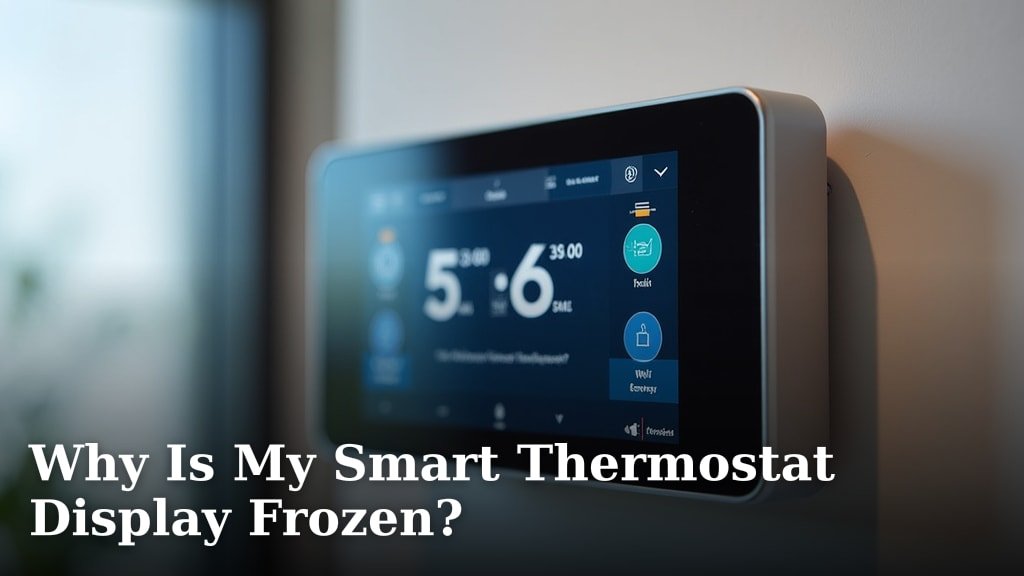
A frozen smart thermostat display usually means there’s a software glitch or a temporary power issue. Don’t worry, it’s often a simple fix! Most of the time, you can get your smart thermostat working again by simply restarting it. We found that this is the quickest way to solve a frozen screen.
When your smart thermostat’s screen is frozen, it can’t communicate with your HVAC system or respond to your touch. This can leave you feeling stuck, unable to adjust your home’s temperature. We’ve found that common culprits include a minor software bug, a brief power interruption, or even a faulty connection. Understanding these causes helps you troubleshoot effectively.
- Frozen screen? Likely a software glitch or power hiccup.
- Restarting is often the easiest fix.
- Check for power and Wi-Fi issues.
- A loose wire could be the culprit.
- Resetting might be needed for persistent problems.
Let’s walk through exactly why your smart thermostat might be frozen and how you can get it back up and running in no time. If you’re comfortable with basic wiring, you can learn how to install a smart thermostat yourself.
Troubleshooting Your Frozen Smart Thermostat Display
It can be frustrating when your smart thermostat’s screen goes blank or freezes. You’re trying to stay comfortable, and suddenly, you have a useless piece of technology on your wall. Don’t worry, we’ve found that most of the time, this isn’t a sign of a major problem. It’s usually a simple fix that you can handle yourself.
This guide will help you understand why your smart thermostat’s display might be frozen and walk you through the steps to get it working again. We’ll cover common causes, easy fixes, and when it might be time to call for professional help.
Common Reasons for a Frozen Smart Thermostat Screen
When you notice your smart thermostat display is frozen, it means it has stopped responding. This can happen for a variety of reasons, but they often fall into a few main categories. Understanding these will help you pinpoint the issue quickly.
1. Software Glitches or Bugs
Just like your smartphone or computer, smart thermostats run on software. Sometimes, this software can encounter a temporary glitch. This might be due to a recent update that didn’t install correctly, or just a random hiccup in the system’s processing. We found that these software issues are one of the most frequent reasons for a frozen screen.
Often, these glitches are minor and can be resolved with a simple restart. Think of it like needing to reboot your computer when it acts up – it clears out temporary errors. Many smart thermostat manufacturers acknowledge that software bugs can occur, especially with new firmware updates.
2. Power Supply Issues
Your smart thermostat needs a consistent flow of power to operate correctly. If this power is interrupted, even for a moment, it can cause the device to freeze or become unresponsive. This could be due to a few different things related to its power source.
Loose or Faulty Wiring
Smart thermostats are typically powered by your home’s electrical system, often through a low-voltage wire. If this wire becomes loose at the thermostat or at the control board in your HVAC system, it can lead to inconsistent power. We’ve seen cases where vibrations or even a slight pull on the thermostat can dislodge a wire.
According to HVAC professionals, a loose wire is a surprisingly common cause of thermostat malfunctions, including frozen displays. It’s essential to ensure all connections are secure.
Battery Problems (if applicable)
Some smart thermostats use backup batteries, even if they are primarily wired. If these batteries are low or dead, they might not be able to provide enough power to keep the thermostat running smoothly, especially during brief power fluctuations in your home. Many manufacturers recommend replacing these batteries every 6-12 months.
Tripped Circuit Breaker
Your HVAC system, including the thermostat, is connected to your home’s electrical panel. If a circuit breaker that controls your HVAC system has tripped, it will cut off power to the thermostat, leading to a frozen screen. It’s a good idea to check your breaker box if other electrical devices in your home are also affected.
3. Overheating or Extreme Temperatures
While less common, extreme environmental conditions can sometimes affect electronic devices. If your thermostat is located in direct sunlight, near a heat vent, or in an area that gets very cold, it could potentially lead to performance issues, including a frozen display. Most smart thermostats are designed to operate within a certain temperature range.
Some manufacturers specify optimal operating temperatures for their devices. For instance, many smart home devices are recommended to operate between 32°F and 104°F (0°C and 40°C) (Nest). Extreme heat can cause components to malfunction temporarily.
4. Wi-Fi Connectivity Problems
While Wi-Fi issues usually affect the smart features of your thermostat (like remote control), some advanced models might experience display problems if they can’t maintain a stable connection. If the thermostat is constantly trying to connect or re-connect to a weak Wi-Fi signal, it could potentially freeze up. If your thermostat is frozen, it’s worth checking for potential Wi-Fi issues that could be causing connectivity problems.
Your Step-by-Step Guide to Fixing a Frozen Smart Thermostat
Now that you have an idea of what might be causing the problem, let’s get your smart thermostat back to normal. We’ll start with the simplest fixes and move towards more involved solutions.
Step 1: The Gentle Restart (Most Effective First Step)
This is your go-to solution for almost any smart device acting strangely. A restart clears temporary memory and can resolve minor software glitches. How you restart your thermostat will vary by brand.
Restarting via the Thermostat Menu
Many smart thermostats have a restart option buried in their settings menu. Navigate through the screen (if it’s still partially responsive) to find options like “System,” “Settings,” “Device Info,” or “Restart.” We found this to be the cleanest way to reboot.
Performing a Hard Reset (if menu isn’t available)
If the screen is completely frozen and unresponsive, you might need to force a restart. This often involves removing the thermostat from its base plate for a short period.
- Gently detach the thermostat display from its wall-mounted base. Most models have a small tab or simply pull away.
- Wait for about 30-60 seconds. This allows the internal components to fully power down.
- Reattach the thermostat display to the base plate. It should power back on and attempt to boot up.
We’ve found that simply removing and reattaching the unit often does the trick. It’s like giving it a quick power cycle without touching any wires.
Step 2: Check the Power Source
If a restart doesn’t work, or if the screen remains blank, it’s time to investigate the power supply.
Verify the Circuit Breaker
Locate your home’s electrical panel. Find the breaker that controls your HVAC system. If it’s in the “off” position or in the middle, flip it completely off and then back on. Many homeowners overlook this simple step, but it’s often the culprit (Energy Star).
Inspect Wiring Connections (Advanced Users)
Only proceed if you are comfortable working with low-voltage wiring. If you’ve removed the thermostat from its base, take a look at the wires connected to the back. Ensure they are securely seated in their terminals. Sometimes, a wire can slip out slightly.
If you see a wire that looks loose, you can try gently pushing it back into its terminal. If you’re unsure, it’s best to stop here and call a professional.
Check Batteries (if applicable)
If your thermostat uses batteries, try replacing them with fresh, high-quality ones. Even if the battery indicator shows some charge, low batteries can cause erratic behavior.
Step 3: Address Wi-Fi and Software Updates
If your thermostat is now on and responsive but still acting oddly, or if you suspect connectivity is an issue:
Check Your Home Wi-Fi
Ensure your home Wi-Fi network is up and running. Try connecting another device to see if it works. If your Wi-Fi is down, your smart thermostat won’t be able to communicate online.
Manually Trigger a Software Update
Once your Wi-Fi is stable, you can try to manually check for and install any available software updates for your thermostat. This can often fix bugs that were causing the freezing issue.
Step 4: Consider a Factory Reset (Last Resort)
If none of the above steps have worked, you may need to perform a factory reset. Be aware that this will erase all your custom settings, schedules, and learned preferences. You’ll have to set up your thermostat again from scratch, just like when it was new.
The method for a factory reset varies significantly by manufacturer. You’ll typically need to consult your thermostat’s user manual or the manufacturer’s website for specific instructions. Sometimes, it involves holding down a combination of buttons for an extended period or accessing a hidden menu.
When to Call a Professional
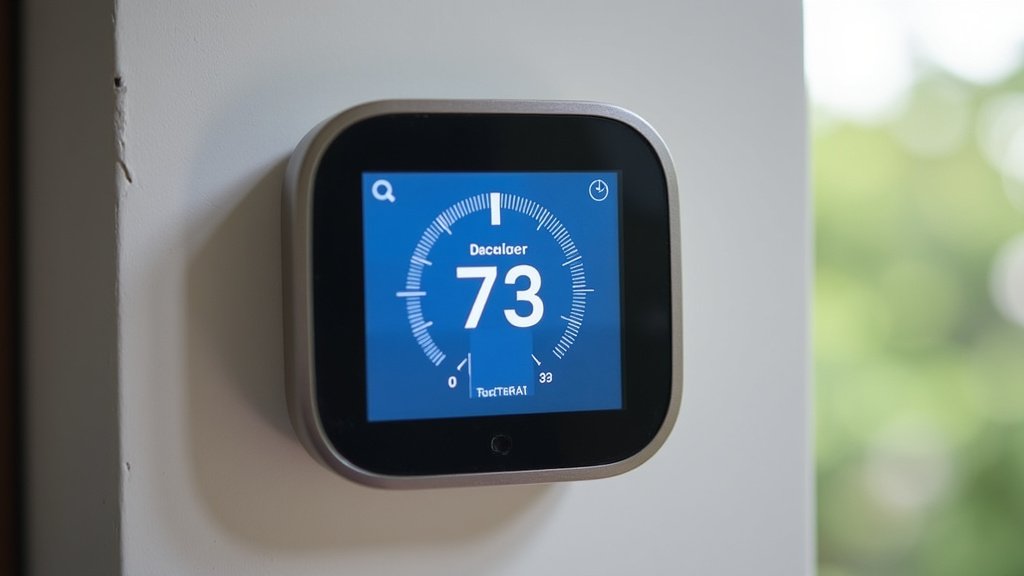
You’ve tried the restarts, checked the power, and maybe even tackled a factory reset. If your smart thermostat’s display is still frozen, or if you encountered any issues with wiring that made you uncomfortable, it’s time to bring in an expert. There might be a more complex issue with the thermostat itself or your home’s HVAC system wiring.
A qualified HVAC technician or a certified thermostat installer will have the tools and knowledge to diagnose deeper problems. They can check for faulty internal components, complex wiring issues, or problems with your HVAC control board that you might not be able to identify yourself.
Remember, your comfort is important. Don’t let a frozen thermostat keep you in discomfort for too long!
Quick Checklist: What to Do If Your Smart Thermostat Freezes
- Restart the thermostat by removing it from the base for 60 seconds.
- Check your home’s circuit breaker for the HVAC system.
- Replace batteries if your thermostat uses them.
- Confirm your home Wi-Fi is working correctly.
- Look for available software updates once connectivity is restored.
- Consider a factory reset if all else fails, but be prepared to reconfigure settings.
Conclusion
Seeing a frozen smart thermostat display can be frustrating, but you’ve learned it’s often a solvable issue. We’ve covered common culprits like software glitches, power interruptions, and loose wiring. Remember, a simple restart is usually your first and best defense. Always check your circuit breaker and ensure your Wi-Fi is stable if smart features are also affected. If these steps don’t resolve the problem, don’t hesitate to consult your user manual for a factory reset or call a professional. Your home’s comfort is worth getting it back online!
Frequently Asked Questions
How often should I restart my smart thermostat?
You don’t need to restart your smart thermostat regularly. Only perform a restart if you notice it’s unresponsive or exhibiting unusual behavior, like a frozen display. Frequent restarts are generally not necessary for normal operation.
Can a power surge freeze my thermostat?
Yes, a sudden power surge or even a brief power outage can sometimes cause a temporary glitch that freezes your smart thermostat’s display. It’s similar to how other electronic devices can act up after an unexpected power interruption.
What’s the difference between a restart and a factory reset?
A restart is like rebooting your computer, clearing temporary errors without losing settings. A factory reset erases all your custom schedules and preferences, returning the thermostat to its original state, so you’ll need to set it up again.
My thermostat is frozen, but my HVAC system is still running. What does this mean?
If your thermostat display is frozen but your heating or cooling system continues to run based on its last setting, it usually means the thermostat’s display or software is the issue, but the communication wire to the HVAC unit is still intact. The system is stuck in its current mode.
Is it safe to pull the thermostat off the wall to reset it?
Yes, for most smart thermostats, safely detaching the display from its wall plate is a standard troubleshooting step. This allows for a power cycle and is safe as long as you don’t force it or disturb any wires.
