
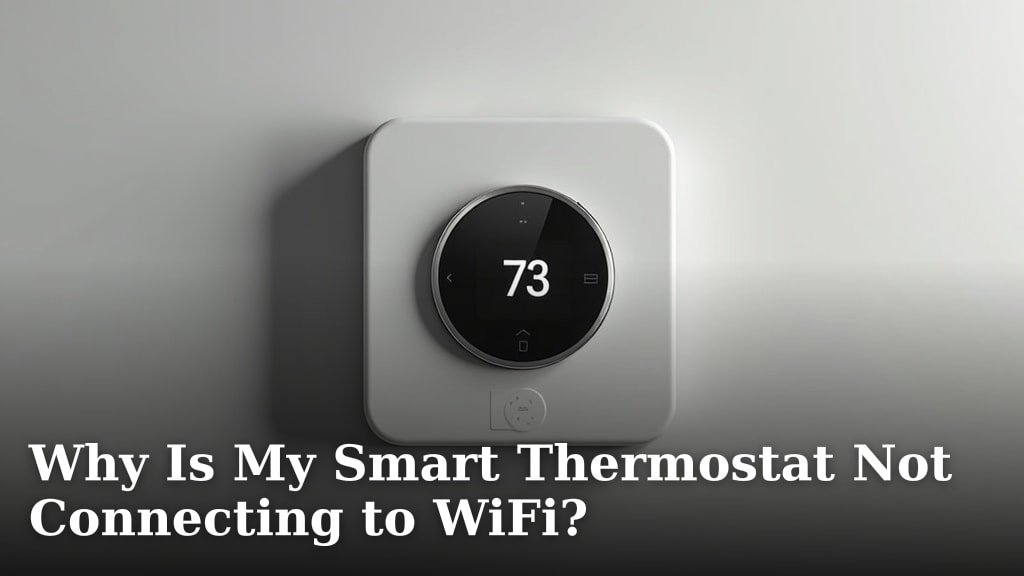
Your smart thermostat is not connecting to WiFi usually because of a weak WiFi signal, a change in your network settings, or some simple device glitches. It can be frustrating when your smart device doesn’t play nice.
You bought a smart thermostat for convenience and control, right? When it stops connecting, you lose those benefits and can’t adjust your home’s temperature from your phone. Many common issues are easy to fix yourself.
- Weak WiFi signal strength.
- Outdated thermostat firmware.
- Incorrect WiFi password.
- Router, modem, or network issues.
- Distance from the WiFi router.
- Thermostat hardware problems.
Let’s walk through the common reasons why your smart thermostat might be offline and how you can get it back up and running.
It’s super frustrating when your smart device starts acting less-than-smart. Let’s figure out what’s going on.
Troubleshooting a Disconnected Smart Thermostat
When your smart thermostat loses its connection, it’s like a tiny, climate-controlling island. The first step is to check the basics. Often, a simple reset or a quick look at your network can solve the problem.
Is Your WiFi Signal Strong Enough?
Think of your WiFi signal like a garden hose. If the water pressure is low, your plants (or your thermostat) won’t get what they need. A weak WiFi signal is one of the most common culprits. Smart thermostats need a steady connection to communicate effectively (National Institute of Standards and Technology).
Check Signal Strength Near the Thermostat
Stand close to your thermostat with your smartphone. Do you see a strong WiFi signal on your phone? If not, your thermostat probably isn’t either. Walls, large appliances, and even furniture can block or weaken WiFi signals.
- Move your router closer if possible.
- Eliminate physical obstructions between the router and thermostat.
- Consider a WiFi extender if the distance is significant.
Resetting Your Devices: The “Turn It Off and On Again” Strategy
This age-old trick works for a reason! Electronic devices, including smart thermostats and routers, can sometimes get into a confused state. A quick power cycle can often clear up these temporary glitches.
Restart Your Thermostat
Many smart thermostats have a reset button or a way to restart them through the menu. If not, carefully remove it from its wall plate for a few seconds and then reattach it. This is like giving it a fresh start. We found that this fixes minor software hang-ups or communication errors.
Reboot Your Router and Modem
Your router is the brain of your home network. Unplug both your WiFi router and your modem from the power outlet. Wait about 30-60 seconds. Plug the modem back in first, wait for all its lights to stabilize, then plug in the router. This process can help clear up IP address conflicts and refresh your network’s connections.
This step often “kickstarts” the connection for many devices, not just your thermostat. It’s like flushing out old information.
Network Settings and Compatibility Checks
Even if your signal is strong, your thermostat might still be having trouble. This could be due to issues with how your network is set up or what type of network your thermostat expects. It’s like trying to plug a square peg into a round hole.
Confirm Your Network Band (2.4 GHz vs. 5 GHz)
Most smart thermostats still operate on the 2.4 GHz WiFi band. While 5 GHz is faster, it has a shorter range and isn’t usually supported by older smart home devices. If your router is operating only on 5 GHz, your thermostat might not see it at all.
- Check your thermostat’s user manual for compatible WiFi bands.
- Log into your router’s settings to ensure the 2.4 GHz band is enabled.
- Sometimes, separating your 2.4 GHz and 5 GHz networks with different names (SSIDs) can help your thermostat connect to the correct one.
Was Your WiFi Password Changed?
It sounds obvious, but a forgotten or recently changed WiFi password is a common reason for disconnection. Your smart thermostat stores the password, and if it’s updated on your router but not on the thermostat, it won’t connect. It’s like changing the lock on your front door but not giving your key a new cut.
- Double-check your current WiFi password.
- Go into your thermostat’s settings and re-enter the WiFi password. Be careful with typos!
Avoid Network Congestion
Too many devices on one WiFi network can be like too many cars on a highway – everything slows down. While your thermostat doesn’t use much bandwidth, a congested network can make it hard for it to establish a stable connection. Research shows that network interference can severely impact device performance (Institute of Electrical and Electronics Engineers).
Try temporarily disconnecting some other devices from your WiFi. See if your thermostat connects then. If it does, you might need to adjust your router’s channel settings or consider upgrading your network equipment to handle more devices.
Advanced Troubleshooting Steps
If the basic steps haven’t worked, it’s time to dig a little deeper. Don’t worry, these steps are still manageable for most homeowners.
Check for Firmware Updates
Just like your smartphone, your smart thermostat runs on firmware – its internal operating system. Outdated firmware can lead to compatibility issues or bugs that prevent a connection. Many experts say that keeping device firmware updated is key to optimal performance and security (Cybersecurity and Infrastructure Security Agency).
- Access your thermostat’s settings menu.
- Look for an option to check for and install firmware updates.
- Sometimes, you might need a temporary internet connection to perform the update.
Reset Network Settings on Thermostat (Last Resort)
If nothing else works, you might need to perform a network settings reset on your thermostat. This will erase all saved WiFi credentials and return network settings to factory defaults. You will then have to reconfigure your WiFi setup on the thermostat as if it were brand new.
Consult your thermostat’s manual for specific instructions on how to perform a network reset. Be aware that this is distinct from a full factory reset, which might erase all your scheduling and preferences.
When to Suspect Hardware Problems
What if your thermostat still won’t connect? Sometimes, the issue isn’t with your WiFi but with the thermostat itself. While less common, hardware failures can happen. If you’ve tried everything above and your thermostat remains stubbornly offline, it might be time to consider the possibility of a damaged WiFi module inside the unit.
- If the device is under warranty, contact the manufacturer.
- Consider replacing the unit if it’s older and constantly losing connection.
Quick Fix Checklist for Disconnected Thermostats
Here’s a handy checklist to run through when your smart thermostat isn’t connecting to WiFi. It’s a structured way to ensure you’ve covered all the common bases.
Check WiFi Signal Strength: Use your phone next to the thermostat.
Reboot WiFi Router/Modem: Unplug for 30s, plug back in.
Restart Thermostat: Power cycle or use its internal reset option.
Verify WiFi Password: Ensure it matches your network exactly.
Confirm 2.4 GHz Band: Your thermostat likely needs this specific WiFi frequency.
Update Thermostat Firmware: Check for and install any available updates.
By systematically working through these steps, you greatly increase your chances of getting your smart thermostat back online and working smoothly!
Conclusion
Dealing with a smart thermostat that’s lost its WiFi connection can be annoying. But as we’ve seen, many common issues have straightforward solutions. You can usually fix things yourself by checking your WiFi signal and security settings.
Remember that a quick reboot of your router or thermostat often works wonders. Don’t forget verifying your password and ensuring 2.4 GHz compatibility. Following these steps systematically will get you back in control.
If you’ve tried everything, consider contacting your thermostat’s support or consulting a professional.
Frequently Asked Questions
My thermostat says “offline” but my WiFi is working. What gives?
Even if your other devices work, your thermostat might have specific issues. It could be on the wrong WiFi band (like 5 GHz instead of 2.4 GHz). It might also need a simple restart to re-establish its connection.
How often should I reboot my router to prevent connection issues?
Rebooting your router once a month (or even every few weeks) is a good practice. It clears its memory and refreshes network connections. This can help prevent various connectivity problems for all your smart devices.
Can a power outage cause my smart thermostat to lose its WiFi connection?
Yes, a power outage can disrupt your WiFi network and thermostat connection. When power returns, your router and modem need time to fully restart. Your thermostat might need a manual restart or need you to re-enter the WiFi credentials.
Why does my smart thermostat only connect to 2.4 GHz WiFi?
Most smart home devices, including many thermostats, are designed for the 2.4 GHz band. This band offers better range and penetration through walls, which is ideal for devices that don’t need high bandwidth. The 5 GHz band is faster but has a shorter, less penetrating range.
What if my router doesn’t separate 2.4 GHz and 5 GHz networks?
Some newer routers combine both bands under a single network name. This can confuse devices that prefer 2.4 GHz. You might need to access your router’s settings to create separate names (SSIDs) for each band. This helps your thermostat see and connect to the correct one.
