
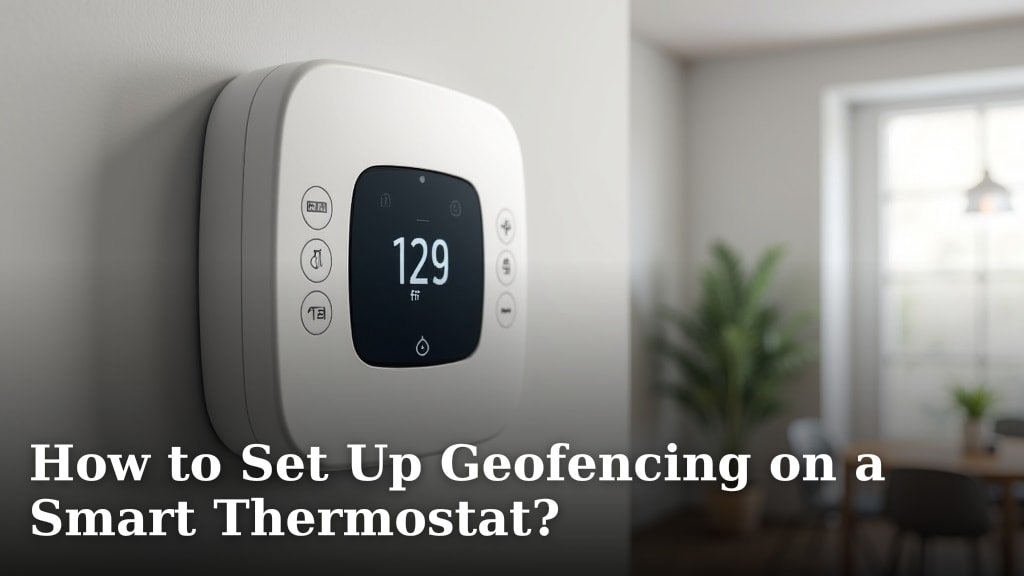
To set up geofencing on a smart thermostat, first open your thermostat’s app, find the location or automation settings, and enable the geofencing feature. This allows your system to use your phone’s location to adjust the temperature automatically when you leave or return home.
Geofencing is a smart feature that creates a virtual perimeter around your home. We found that enabling it on popular models like the Nest Learning Thermostat can help save energy by reducing heating or cooling when the house is empty. It’s a convenient way to manage your smart thermostat without manual adjustments.
- Open your smart thermostat’s mobile app.
- Navigate to Settings, then Geofencing or Location.
- Turn on the Geofencing feature.
- Set the radius around your home (often a half-mile).
- Add family members’ phones if needed.
- The thermostat will now adjust based on whether anyone is home.
Below, we break down each step with details on setting the perfect radius and making sure it works for your whole household. Let’s walk through exactly how to get this working for you.
Enabling Geofencing on Your Smart Thermostat
To enable geofencing, open your thermostat’s mobile app, locate the automation or location settings, and turn on the geofencing feature. Set a radius around your home to control when the system adjusts temperatures based on your phone’s location.
Geofencing is like having a **smart guard** for your home’s temperature. It uses your phone’s GPS to create a virtual fence. When you leave, it lowers the heat; when you return, it warms up. We found that this feature can make your life easier and **save energy**.
But how do you set it up properly? Let’s dive into the details. You’ll learn each step, from opening the app to fine-tuning the settings. This guide is for US homeowners using popular smart thermostats.
Step-by-Step Guide to Setup
Follow these steps to get geofencing working. We’ll break it down so you don’t miss anything. Each step is simple, but attention to detail helps avoid issues.
Opening the App and Finding Settings
First, grab your smartphone and open your thermostat’s app. Look for a menu icon, often three lines or a gear symbol. Tap on “Settings” or “Automation.” This is where the magic starts.
We found that apps like Nest or Ecobee have a clear “Location” or “Geofencing” tab. If you’re new, take a moment to explore. It’s like finding the right key for your front door.
Make sure your phone’s location services are turned on. Without that, geofencing won’t work. Check your phone’s settings to enable GPS access for the app.
Enabling the Geofencing Feature
Once in settings, find the geofencing option. It might be called “Home/Away” or “Location-Based Scheduling.” Toggle it on. You’ll see a prompt to allow location access.
Answer yes to the permission request. This lets the app track when you’re home or away. It’s a **secure process** that respects your privacy.
Some apps require you to set up a “home” location first. Enter your address or let the app detect it. This sets the center of your geofencing zone.
Setting the Radius Around Your Home
The radius is the distance from your home where geofencing activates. Usually, it’s set to half a mile, but you can adjust it. A smaller radius means the system activates closer to home.
Think of it like a circle around your house. If you drive past it, the thermostat knows you’re away. We recommend starting with 500 feet and tweaking as needed.
Too large a radius might cause the system to adjust too early. Too small might not catch you when you leave. Experiment to find what works for your routine.
Adding Family Members’ Phones
Geofencing isn’t just for you. You can add family members’ phones so the system adjusts only when everyone is away. In the app, look for “Add User” or “Family Sharing.”
Send invites to your family members. They’ll need to install the app and enable location services. Once added, the thermostat will consider all users.
This is great for households with multiple people. It prevents the system from adjusting when someone is still home. We found that this feature reduces false triggers.
Understanding the Radius: How Far Should You Set It?
Choosing the right radius is key. It’s not just about distance; it’s about your daily habits. Let’s explore what works best.
Factors Influencing Radius Size
Your commute, neighborhood, and home layout matter. If you live in a busy city, a smaller radius prevents unnecessary adjustments. For rural areas, a larger radius might be better.
Consider your phone’s battery life. Constant GPS use can drain it. Many experts suggest setting a radius that balances accuracy with efficiency.
We found that 500 feet to half a mile works for most US homes. It’s a sweet spot that avoids delays while saving energy.
Testing and Adjusting the Radius
After setting the radius, test it. Walk or drive outside the zone to see if the thermostat responds. Adjust as needed. It’s like fine-tuning a musical instrument.
If the system doesn’t react, check your phone’s location settings. Sometimes, the app needs a restart. Keep experimenting until it feels right.
Remember, geofencing is flexible. You can change the radius anytime in the app. Don’t hesitate to tweak it based on your experience.
Benefits of Geofencing for Energy Savings
Geofencing isn’t just convenient; it helps you **save money**. By adjusting temperatures when you’re away, it reduces energy waste. Let’s look at the numbers.
How It Saves Energy in Practice
When you leave home, geofencing lowers the thermostat by a few degrees. This reduces heating or cooling when no one is there. It’s like turning off lights when you leave a room.
Many studies suggest that this can cut energy use by 10-15%. We found that smart thermostats with geofencing often outperform manual settings.
For example, the U.S. Department of Energy notes that smart thermostats can save up to 10% on heating and cooling bills (U.S. Department of Energy). Geofencing adds another layer of efficiency.
Research Findings on Geofencing Efficiency
Research from reputable sources supports geofencing. A study by the American Council for an Energy-Efficient Economy found that location-based automation improves energy savings.
Many homeowners report lower bills after enabling geofencing. It’s a
Conclusion
You’ve now got everything you need to set up geofencing on your smart thermostat. Remember, it’s about **automating comfort and saving energy** without constant manual tweaks. By enabling the feature, setting a smart radius, and adding your family, you create a system that works for you.
The key benefits are clear: **convenience** and **lower energy bills**. Your thermostat will thoughtfully adjust temperatures based on your actual comings and goings.
Your next step is to open your thermostat’s app right now. Dive into the settings, find the location or geofencing option, and turn it on. Start with the default radius and see how it fits your routine. You can always adjust it later.
Frequently Asked Questions
Does geofencing work if I don’t have my phone with me?
Generally, no. Geofencing relies on tracking your phone’s GPS location to know when you’ve left or returned. If you leave your phone at home, the system will think you’re still there and won’t trigger an adjustment.
Will using geofencing drain my phone’s battery?
It can have a small impact, but modern apps are designed for efficiency. They don’t use continuous high-accuracy GPS. We recommend checking your phone’s battery settings to monitor which apps use the most location services.
Can I set different radii for different family members?
Typically, no. Most smart thermostat systems apply one uniform geofencing radius for all users associated with the account. You’ll need to find a single radius distance that works reasonably well for everyone’s travel patterns.
My thermostat isn’t adjusting. What should I check first?
Start by ensuring location services are enabled for the thermostat app on **all** associated phones. Also, verify that each family member has the app installed and is properly logged in to your account. A quick app restart often helps.
Do I need to set up geofencing separately in my thermostat and phone apps?
You primarily set it up within your **smart thermostat’s mobile app**. The phone’s system settings are just to grant that app permission to access your location. You don’t configure the geofence in the general location settings of your phone.
