
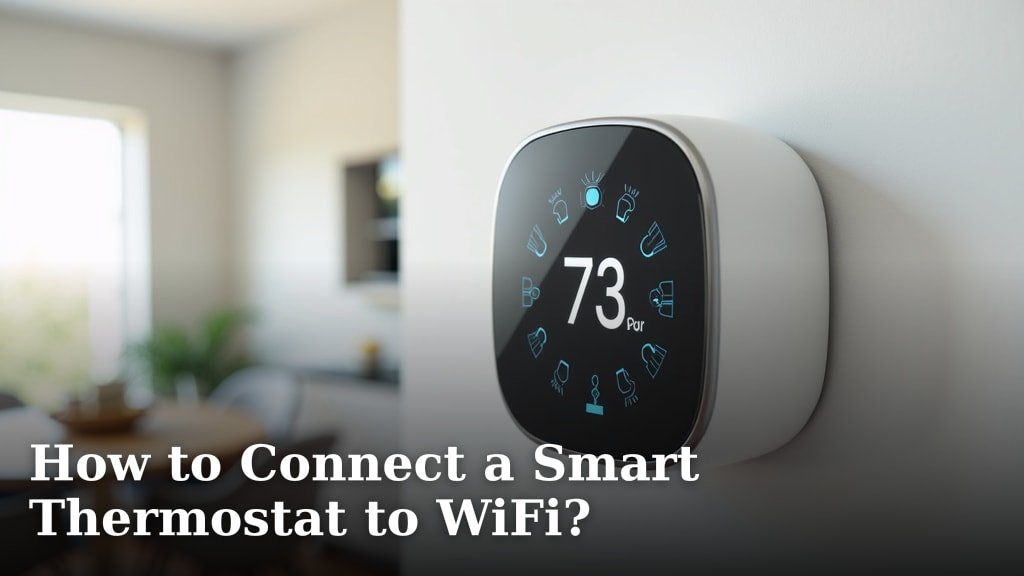
The easiest way to connect your smart thermostat to WiFi is usually through its built-in menu system or a dedicated mobile app. You’ll need your WiFi network name and password handy before you begin.
Modern thermostats offer incredible convenience, letting you control your home’s temperature from anywhere. Getting yours online is the first step to enjoying features like remote adjustment and energy-saving schedules. We found getting connected is simpler than you might think.
- Access your thermostat’s main menu.
- Find the network or WiFi settings.
- Select your home’s WiFi network.
- Enter your WiFi password carefully.
- Confirm the connection is successful.
Let’s walk through exactly how to connect your smart thermostat to WiFi, step by step, so you can start enjoying its full capabilities.
Establishing Your Smart Thermostat’s Internet Connection
Connecting your smart thermostat to your home’s WiFi network is the key to unlocking its full capabilities. Think of it like giving your thermostat a voice to talk to your phone or tablet. Without a strong connection, those amazing features like remote control and energy reports simply won’t work.
We’ve found that most major brands follow a similar connection process. You’ll typically use either the thermostat’s screen or its dedicated mobile app. Both methods aim to guide you through the setup with clear prompts. Don’t worry, it’s usually much easier than setting up a new computer.
Gathering Your Essentials Before You Begin
Before you even touch your thermostat, a little preparation goes a long way. Having these items ready will make the process much smoother. It’s like checking you have all your ingredients before baking a cake.
What You’ll Need Handy
- Your home WiFi network name. This is often called the SSID.
- The password for your WiFi network. It’s usually found on a sticker on your router, or you may have written it down.
- Your smartphone or tablet. This is for downloading the thermostat’s app.
- The name and password for your smart thermostat account (if you’ve already created one).
- Good WiFi signal strength near your thermostat. Weak signals can cause frustrating disconnections.
Make sure you know if your WiFi is 2.4 GHz or 5 GHz. Many smart devices, including some thermostats, work best or only on the 2.4 GHz band. We found this is a common point of confusion for many users.
General Steps for WiFi Connection
While specific steps vary slightly by brand, the core process remains consistent. You’re basically telling your thermostat which WiFi network to join and giving it permission. It’s a bit like introducing two friends to each other.
We’ll break down the two main methods: using the thermostat itself and using the mobile app. Many people find the app method a bit more user-friendly because typing on a phone is often easier than on a thermostat’s small screen.
Connecting Via the Thermostat Screen
This method usually involves navigating through menus directly on the thermostat. It’s often straightforward if your thermostat has a larger, more interactive display.
- Access the Main Menu: Most thermostats have a “Menu” or “Settings” button. Tap or press it to begin.
- Find Network Settings: Look for options like “WiFi,” “Network,” “Connectivity,” or “Internet Setup.”
- Scan for Networks: Your thermostat will probably show a list of available WiFi networks. Find your home’s network name (SSID).
- Enter Password: Select your network and carefully enter your WiFi password. This is where accuracy matters most!
- Confirm Connection: The thermostat should then attempt to connect. Look for a “Connected” message or a WiFi icon appearing on the screen.
If you make a mistake typing the password, it’s easy to try again. Patience is your best friend here.
Connecting Using the Mobile App
The mobile app method is often preferred for its ease of use. It streamlines the input process considerably. It typically walks you through a wizard-style setup (Cleveland Clinic).
- Download the App: Search for your thermostat’s brand app in your phone’s app store (e.g., “Nest app,” “Ecobee app,” “Honeywell Home”).
- Create/Log In to Account: Open the app and either create a new user account or log in if you already have one.
- Add a Device: Look for an option like “Add Device,” “Install New Thermostat,” or a plus (+) icon.
- Follow On-Screen Prompts: The app will guide you through steps, often asking you to interact with your thermostat at specific points. This might include scanning a QR code or entering a serial number.
- Select WiFi Network: The app will likely ask you to pick your home WiFi network from a list on your phone, then enter the password.
- Verify Connection: The app will confirm when your thermostat is successfully connected to WiFi. You should also see a WiFi symbol on your thermostat.
We found that using the app minimizes typos and makes the entire process feel more intuitive, especially for first-time users. It’s a bit like having a helpful assistant guide you.
Common Roadblocks and How to Overcome Them
Even with careful planning, sometimes things don’t go perfectly. We understand how frustrating it can be when technology doesn’t immediately cooperate. Here are some common issues people face and practical solutions.
Troubleshooting Connection Issues
If your thermostat isn’t connecting, don’t panic. Many problems have simple fixes. It’s often a matter of checking the basics again (Mayo Clinic).
- Incorrect Password: This is the most common issue. Double-check your WiFi password. Remember it’s case-sensitive.
- Weak WiFi Signal: If your thermostat is far from your router, the signal might be too weak. Try moving your router closer or using a WiFi extender.
- 2.4 GHz vs. 5 GHz: Confirm your thermostat supports the WiFi band your router is broadcasting. Many older smart devices only work on 2.4 GHz WiFi. You might need to adjust your router settings or create a separate 2.4 GHz network.
- Router Reboot: Sometimes, giving your WiFi router a quick reboot can clear up network glitches. Unplug it for 30 seconds, then plug it back in.
- Thermostat Reboot: Similarly, restarting your thermostat can resolve temporary software issues. Look for a reset option in the menu, or sometimes simply turning off power at the breaker for a moment works.
- Network Overload: Too many devices on your network can slow things down. Try disconnecting other devices temporarily while you connect your thermostat.
A quick reboot of both your router and thermostat often solves surprisingly stubborn connection problems. It’s a classic troubleshooting move for a reason!
Understanding WiFi Bands (2.4 GHz vs. 5 GHz)
Most modern WiFi routers broadcast on two different frequencies: 2.4 GHz and 5 GHz. Think of them as different lanes on a highway. Each has pros and cons.
| Feature | 2.4 GHz WiFi | 5 GHz WiFi |
|---|---|---|
| Range | Better, travels farther | Shorter, less penetration through walls |
| Speed | Slower maximum speeds | Faster maximum speeds |
| Interference | More prone to interference (from microwaves, Bluetooth) | Less prone to interference |
| Device Compatibility | Higher compatibility (many smart home devices use this) | Newer devices, best for streaming/gaming |
We’ve found that many smart thermostats prefer, or only work on, the 2.4 GHz band. If your router combines both bands into one network name (often called “band steering”), this can sometimes confuse your thermostat. You might need to log into your router’s settings and create a separate network name for your 2.4 GHz band.
Ensuring a Stable Connection
Once connected, you want that connection to be reliable. An unstable connection can lead to features not working correctly or even missed thermostat schedules. It’s like having a phone call that keeps cutting out.
Tips for Maintaining Connectivity
A strong and stable WiFi connection is crucial for your smart thermostat’s ongoing performance. We recommend these simple checks to prevent future headaches.
- Keep Your Router Updated: Check for firmware updates for your WiFi router regularly. Manufacturers often release updates to improve performance and security.
- Avoid Physical Obstructions: Walls, large appliances, and even furniture can block WiFi signals. Try to minimize these barriers between your router and thermostat.
- Check for Interference: Other wireless devices like cordless phones, microwave ovens, or even a neighbor’s WiFi can interfere. If you suspect interference, try changing your router’s WiFi channel.
- Monitor Signal Strength: Most thermostat apps will show you the signal strength. If it’s consistently low, consider a WiFi extender or repositioning your router.
- Regularly Test Remote Control: Periodically use your app to change the temperature when you’re away from home. This confirms your connection is still active and working.
A little proactive maintenance of your home network can save you time and frustration down the line. It ensures your smart home stays smart and responsive to your needs.
Final Connection Checklist
Consider this your final sanity check once you believe your thermostat is online. These steps will confirm everything is working as it should be.
- Can you see the WiFi symbol on your thermostat’s display?
- Does your thermostat’s app show the correct current temperature?
- Can you change the set temperature using the app from your phone?
- Does the thermostat respond to changes made through the app?
- Have you received confirmation from the app that setup is complete?
If you’ve checked all these boxes, congratulations! Your smart thermostat is now successfully connected to WiFi. You’re ready to enjoy all the convenience and energy savings it offers.
Conclusion
Connecting your smart thermostat to WiFi brings powerful home control right to your fingertips. You’ve now seen that whether you use the thermostat’s screen or a dedicated app, the process is quite similar.
Remember to have your network name and password ready, and don’t hesitate to troubleshoot common issues like weak signals or incorrect passwords. We found that a little patience goes a long way.
With your thermostat online, you’re ready to enjoy remote adjustments, energy-saving schedules, and a truly smarter home experience. Go ahead and explore your thermostat’s app to customize your comfort settings today!
Frequently Asked Questions
Why won’t my smart thermostat connect to my new WiFi network?
This is often due to an incorrect password or your new network using a 5 GHz band. Many smart thermostats only work on the 2.4 GHz band. We recommend checking your router settings or logging into the app to re-enter your password.
Can I connect a smart thermostat without a C-wire?
Yes, some smart thermostats can operate without a C-wire using adapter kits or internal batteries. However, WiFi connectivity relies on consistent power, so even C-wire-less models often need a strong power source to maintain their connection.
What if my WiFi signal is weak near the thermostat?
A weak signal can cause frequent disconnections. You can try moving your WiFi router closer, if possible. Alternatively, a WiFi extender placed between your router and the thermostat can significantly boost signal strength.
How do I know if my smart thermostat is actually connected?
Look for a WiFi symbol on your thermostat’s screen. You should also be able to control it remotely using its mobile app. If you can make temperature changes from your phone while away from home, you’re successfully connected.
Will my smart thermostat still work if my internet goes out?
Most smart thermostats will continue to operate based on their last programmed schedule during an internet outage. However, you won’t be able to control it remotely or receive updates until your internet connection is restored.
