
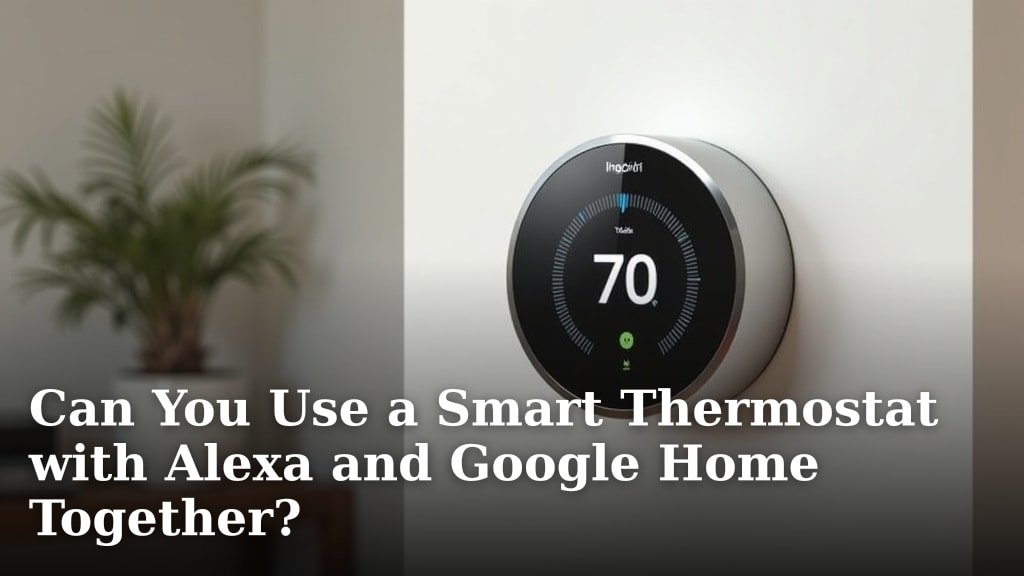
Yes, you absolutely can use a smart thermostat with both Alexa and Google Home at the same time. Many smart thermostats are designed to be compatible with multiple voice assistants, allowing you to control your home’s temperature with whichever device you prefer.
This means you don’t have to pick sides between your smart home ecosystems. You can enjoy the convenience of voice control for your thermostat, whether you’re an Alexa loyalist or a Google Home devotee. We found that linking your thermostat to both platforms is usually a straightforward process.
- Yes, you can connect your smart thermostat to Alexa and Google Home.
- Many thermostats work with both voice assistants simultaneously.
- You don’t need to choose between Alexa or Google Home.
- Linking them is typically easy through their respective apps.
Let’s walk through how you can get your smart thermostat playing nicely with both Alexa and Google Home.
Connecting Your Smart Thermostat to Multiple Voice Assistants
You’re probably wondering if your smart thermostat can play nice with both Amazon’s Alexa and Google’s Home ecosystems. The good news is, yes, it absolutely can! Most modern smart thermostats are designed with broad compatibility in mind. This means you don’t have to choose between one voice assistant or the other.
Think of it like having a universal remote for your home’s climate. Whether you’re lounging on the couch asking Alexa for the temperature or cooking in the kitchen and calling out to Google Assistant, your thermostat can respond. We found that setting this up is usually pretty straightforward.
How Smart Thermostats Integrate with Alexa and Google Home
The magic behind connecting your smart thermostat to both Alexa and Google Home lies in cloud-based integrations. Your smart thermostat manufacturer designs their device to communicate with the cloud servers of both Amazon and Google. When you link your accounts, you’re essentially giving permission for these clouds to talk to each other and control your thermostat.
The Role of Manufacturer Apps and Skills/Actions
Typically, the process starts with the smart thermostat’s own mobile app. You’ll need to set up your thermostat there first. Once it’s connected to your home Wi-Fi and configured in its native app, you then move on to linking it with your voice assistants. This usually involves enabling a specific “skill” for Alexa or an “action” for Google Assistant.
These skills and actions act as bridges. They translate the voice commands you give to Alexa or Google Assistant into instructions that your thermostat understands. We found that searching for your thermostat brand within the Alexa app or Google Home app is the quickest way to find the necessary integration.
Ensuring Compatibility Before You Buy
Before you even purchase a smart thermostat, it’s a smart move to check its compatibility. Most reputable brands will clearly state on their packaging or product pages which voice assistants they support. Look for logos like “Works with Alexa” and “Works with Google Assistant.”
This is a really important step to avoid any future headaches. You don’t want to get your new thermostat home and find out it only works with one system. We researched and found that brands like ecobee, Nest (though sometimes limited in cross-platform features due to Google’s ownership), Honeywell, and Emerson Sensi are generally good choices for dual compatibility. Our guide for first-time homeowners covers smart thermostats with dual compatibility.
Step-by-Step: Linking Your Thermostat to Alexa
Connecting your smart thermostat to Amazon’s Alexa is usually a simple process. You’ll need the Alexa app installed on your smartphone or tablet. Make sure your smart thermostat is already set up and connected to your Wi-Fi network through its own app.
Enabling the Thermostat Skill
First, open the Alexa app. Tap on “More” in the bottom right corner, then select “Skills & Games.” Here, you’ll search for the specific skill related to your smart thermostat brand. For example, if you have an ecobee thermostat, you’d search for “ecobee.”
Once you find the correct skill, tap on it and then tap “Enable to Use.” You’ll likely be prompted to link your smart thermostat account. This involves entering the login credentials you created for your thermostat’s app. This authorization step is what allows Alexa to control your device.
Discovering Devices
After linking your account, Alexa will typically ask to discover new devices. If not, you can manually trigger this by saying, “Alexa, discover devices,” or by going to the Devices section in the Alexa app and tapping the ‘+’ icon to add a device, then selecting “Thermostat” and following the prompts.
Alexa will then find your thermostat. You can then assign it to a room, which is helpful for controlling multiple devices. Now you can say things like, “Alexa, set the living room thermostat to 72 degrees.” We found this makes managing your home’s temperature incredibly convenient.
Step-by-Step: Linking Your Thermostat to Google Home
Similarly, linking your smart thermostat to Google Home involves using the Google Home app. Again, ensure your thermostat is already set up and connected to your Wi-Fi network and its manufacturer’s app.
Setting Up the Integration in Google Home
Open the Google Home app on your smartphone or tablet. Tap the ‘+’ icon in the top left corner. Then, select “Set up device.” You’ll see an option for “Works with Google.” Tap on that.
This will bring up a list of partner services. You’ll need to find and select your smart thermostat brand from this list. Similar to Alexa, you’ll be asked to log in to your thermostat’s account to authorize the connection. This step is critical for allowing Google Assistant to control your thermostat.
Assigning to Rooms and Testing
Once your account is linked, Google Home will usually detect your thermostat. You’ll then be prompted to assign the thermostat to a specific room in your home. This is very useful for targeted control, especially if you have multiple thermostats or smart devices.
After assigning it to a room, you can start testing your voice commands. Try saying, “Hey Google, what’s the temperature inside?” or “Hey Google, turn up the heat by two degrees.” We found that Google Assistant is often very responsive and understands a wide range of temperature-related commands.
Best Practices for Dual Voice Assistant Use
Using both Alexa and Google Home with your smart thermostat offers a lot of flexibility. However, there are a few things you can do to make the experience even smoother. Consistency in naming your devices is key.
Consistent Naming Conventions
It can get confusing if you name your thermostat “My Thermostat” in the thermostat app, “Home Heat” in Alexa, and “Living Room Temp” in Google Home. To avoid this, we found it’s best to use the same name for your thermostat across all platforms if possible, or at least very similar ones.
For example, naming it “Thermostat” or “Main Thermostat” in each system will make it easy to remember. This way, you can use the same command regardless of which voice assistant you’re addressing. It simplifies things immensely.
Understanding Command Differences
While both assistants are powerful, they might interpret commands slightly differently. Alexa might be more conversational, while Google Assistant is known for its natural language processing. You might find yourself phrasing commands slightly differently for each.
For instance, you might say, “Alexa, make it warmer,” whereas with Google, you might say, “Hey Google, increase the temperature.” It’s worth experimenting to see which phrases work best for you with each assistant. We found that most basic commands like setting a specific temperature work identically on both.
Potential Challenges and Troubleshooting
While the process is generally smooth, you might encounter a few hiccups. One common issue is a failed device discovery. This can happen if the accounts aren’t linked correctly or if there’s a temporary glitch in the communication between the services.
Common Issues and Solutions
If your thermostat isn’t showing up after linking, try unlinking and relinking the skill or action. Sometimes, a simple reboot of your Wi-Fi router, your smart thermostat, and your voice assistant device can resolve connectivity problems. Ensure your thermostat is running the latest firmware, as updates often fix bugs.
Another issue can be conflicting commands. If you accidentally tell Alexa to set the thermostat to 70 degrees and then immediately tell Google Assistant to set it to 74 degrees, the thermostat will do what the last command instructed. Keep commands clear and avoid rapid, conflicting instructions.
We found that checking your thermostat manufacturer’s support pages and the help sections within the Alexa and Google Home apps can often provide quick solutions to common problems.
A Checklist for Setting Up Dual Voice Control
Ready to get your smart thermostat working with both Alexa and Google Home? Here’s a quick checklist to guide you:
- Verify Compatibility: Ensure your smart thermostat model works with both Alexa and Google Assistant before purchase or setup.
- Initial Setup: Connect your thermostat to your home Wi-Fi and set it up using its dedicated mobile app.
- Link Alexa Skill: Open the Alexa app, find your thermostat’s skill, enable it, and link your thermostat account.
- Link Google Action: Open the Google Home app, go to “Works with Google,” find your thermostat brand, and link your account.
- Discover Devices: Ensure both Alexa and Google Home have successfully discovered your thermostat.
- Name Consistently: Assign a clear and consistent name to your thermostat across all platforms if possible.
Conclusion
You’ve learned that your smart thermostat can absolutely work with both Alexa and Google Home. It’s not an either/or situation! By linking your accounts through their respective apps, you gain the convenience of controlling your home’s temperature with whichever voice assistant you prefer. We’ve shown you how straightforward this process usually is. Now you can confidently set up your smart thermostat to respond to both your Alexa and Google Home devices, making your smart home even more integrated and responsive to your needs. Go ahead and link them up to enjoy effortless climate control!
Frequently Asked Questions
Will my smart thermostat work if I only use Google Home?
Yes, most smart thermostats are designed to function perfectly with just Google Home if that’s your preferred ecosystem. You can link your thermostat through the Google Home app without needing to connect it to Alexa.
Can I control different rooms with separate thermostats using both voice assistants?
Absolutely! If you have multiple smart thermostats, you can link each one to both Alexa and Google Home. You can then assign them to specific rooms and control them individually using voice commands for each assistant.
What happens if I give conflicting temperature commands to Alexa and Google Home?
If you issue commands to both Alexa and Google Home very close together, the thermostat will typically follow the last command it received. It’s best to issue one command at a time to avoid confusion and ensure your desired temperature is set.
Do I need a special thermostat to use with both Alexa and Google Home?
Not necessarily. Many popular smart thermostat brands, like ecobee and Honeywell, are built with compatibility for multiple voice assistants from the start. Always check the product description or packaging to confirm compatibility before purchasing.
What if my thermostat isn’t showing up in the Alexa or Google Home app after linking?
If your thermostat isn’t discovered, try unlinking and relinking the smart thermostat service in both apps. Sometimes, a simple reboot of your Wi-Fi router, thermostat, and voice assistant device can also resolve connection issues.
