
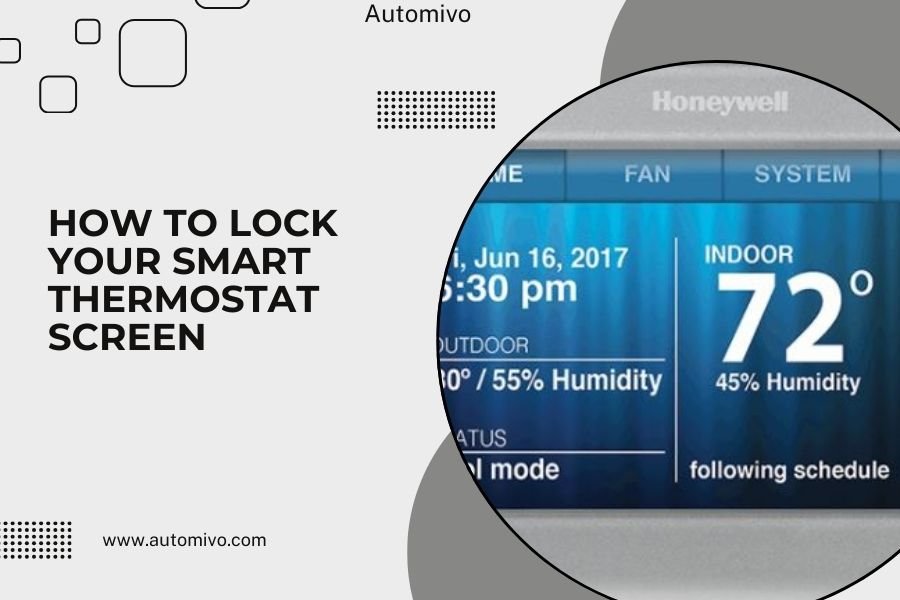
Most smart thermostats allow you to lock your screen through the device settings menu or companion mobile app to prevent unauthorized temperature changes.
You can typically enable screen lock by accessing the thermostat’s security or parental controls section and setting up a PIN code or passcode protection.
Why Lock Your Smart Thermostat Screen?
Have you ever walked into your home to find someone cranked the air conditioning to arctic levels? Or maybe your kids think it’s fun to turn the heat up while you’re at work?
Locking your smart thermostat screen solves these problems. It stops unauthorized people from changing your temperature settings. This keeps your energy bills under control and maintains your comfort preferences.
Think of it like putting a password on your phone. You want to control who can make changes to something that affects your daily life and wallet.
When You Should Lock Your Thermostat
Research shows that unauthorized thermostat changes can increase energy costs by 15-30% monthly. Here are the main situations where locking makes sense:
- You have young children who like pressing buttons
- Houseguests or service workers visit regularly
- You rent out part of your home
- Family members constantly adjust temperatures
- Your thermostat is in a high-traffic area
Different Types of Smart Thermostat Locks
PIN Code Protection
Most smart thermostats use a 4-digit PIN system. You enter this code before making any temperature changes. It’s simple but effective.
The PIN typically times out after a few minutes. This means you don’t have to enter it again if you make multiple adjustments quickly.
App-Only Control
Some models let you disable the physical screen completely. All changes must happen through your smartphone app.
This works great if you’re the only person who needs thermostat access. But it can be annoying if other family members need to make legitimate changes.
Partial Locks
Many thermostats offer partial locking. You might allow small temperature adjustments but prevent major changes or system mode switches.
For example, you could let people adjust the temperature by 2-3 degrees but stop them from switching between heating and cooling modes.
How to Lock Popular Smart Thermostat Brands
Nest Thermostat Screen Lock
Google Nest thermostats make screen locking straightforward through the Google Home app.
Step-by-Step Nest Locking
- Open your Google Home app
- Select your thermostat device
- Tap the settings gear icon
- Choose “Device features”
- Enable “Thermostat lock”
- Set your preferred PIN code
Once locked, anyone trying to change settings on the physical device will see a lock icon. They’ll need your PIN to make adjustments.
Ecobee Thermostat Protection
Ecobee offers robust locking options through both the device menu and mobile app.
Ecobee Lock Process
- Go to your thermostat’s main screen
- Select “Menu” then “Settings”
- Choose “Preferences”
- Find “Screen Lock” option
- Create a 4-digit access code
- Save your settings
Ecobee also lets you set temperature limits instead of complete locks. This gives family members some flexibility while preventing extreme changes.
Honeywell Smart Thermostat Security
Honeywell models typically use their Total Connect Comfort app for lock settings.
Honeywell Locking Steps
- Open the Total Connect app
- Select your thermostat
- Tap “Advanced Settings”
- Choose “Security Settings”
- Enable “Keypad Lockout”
- Set your security PIN
Some Honeywell models also offer installer locks. These prevent changes to system configuration but allow temperature adjustments.
Setting Up Screen Locks Through Mobile Apps
App-Based Lock Benefits
Using your smartphone app to set locks offers several advantages. You can make changes remotely without touching the thermostat itself.
Most apps also let you temporarily disable locks. This helps when you have houseguests who need thermostat access for a few days.
Common App Lock Features
I found that most thermostat apps include these security options:
- PIN code protection
- Temperature range limits
- Schedule lock protection
- Guest access codes
- Automatic lock timers
Advanced Locking Options
Temperature Range Restrictions
Instead of completely locking your thermostat, you might set acceptable temperature ranges. For example, allow adjustments between 68-78 degrees but prevent anything outside that range.
This gives family members some control while protecting your energy bills from extreme settings.
Schedule Protection
Many smart thermostats let you lock your programmed schedules separately from temperature controls. People can make temporary adjustments, but your automatic schedule stays protected.
This works well for families where everyone has different comfort preferences throughout the day.
Mode Restrictions
You can often lock specific system modes. Maybe you allow heating and cooling changes but prevent people from switching to emergency heat or turning the system off completely.
Troubleshooting Lock Issues
Forgotten PIN Codes
Locked yourself out? Don’t panic. Most thermostats have master reset options.
Check your user manual for the specific reset sequence. This usually involves holding certain buttons while powering the device on.
App Connection Problems
If your mobile app won’t connect to change lock settings, try these fixes:
- Restart your phone’s WiFi connection
- Close and reopen the thermostat app
- Check if your thermostat needs a firmware update
- Restart your home’s internet router
Lock Feature Not Working
Sometimes lock features stop responding. This often happens after power outages or system updates.
Try disabling the lock completely, wait a few minutes, then re-enable it with a new PIN code.
Best Practices for Thermostat Security
Choose Smart PIN Codes
Avoid obvious PIN codes like 1234 or your house number. Pick something memorable but not easily guessed.
Consider using the last four digits of a phone number that only family members would know.
Regular Code Updates
Change your PIN code every few months, especially if you’ve had service workers or guests in your home.
Most apps make code changes quick and easy. Set a phone reminder to update codes quarterly.
Balance Security and Convenience
Don’t make your thermostat so locked down that it becomes annoying for daily use. Find the right balance between security and family convenience.
Consider using temperature range limits instead of complete locks for most situations.
Alternative Security Measures
Physical Placement
Sometimes the best security is smart thermostat placement. Install your device in a less accessible location where casual visitors won’t notice it.
Avoid high-traffic hallways or areas where kids play regularly.
User Education
Teaching family members about energy costs and comfort settings can be more effective than locks.
Show them how temperature changes affect your monthly bills. Most people become more considerate once they understand the financial impact.
Smart Home Integration Locks
Voice Assistant Controls
If your thermostat works with Alexa or Google Assistant, you can set voice command restrictions.
Some smart home systems let you require voice PIN codes before allowing temperature changes through voice commands.
Home Automation Rules
Advanced users can set up automation rules that override manual changes. For example, your system might automatically return to your preferred temperature after 30 minutes, regardless of manual adjustments.
Conclusion
Locking your smart thermostat screen protects your comfort settings and energy bills from unauthorized changes. Whether you choose PIN protection, app-only control, or temperature range limits, the key is finding a balance between security and convenience for your household.
Start with your thermostat’s mobile app or on-device settings menu. Most systems make locking straightforward with clear step-by-step instructions. Remember to choose memorable PIN codes and update them regularly for the best security.
The small effort of setting up screen locks can save you money and frustration. Your future self will thank you when you come home to the perfect temperature instead of an arctic blast or tropical heat wave.
How do I unlock my smart thermostat if I forget the PIN?
Most smart thermostats have a master reset sequence involving specific button combinations during startup. Check your user manual or contact customer support for your specific model’s reset procedure. Some brands also offer PIN recovery through their mobile apps if you’re still logged in.
Can I set different lock levels for different family members?
Many newer smart thermostats support user profiles with different access levels. You might give some family members full control while restricting others to small temperature adjustments. Check your thermostat’s app for user management or family account features.
Will locking my thermostat screen affect automatic schedules?
No, screen locks typically only prevent manual changes to your thermostat. Your programmed schedules and automatic temperature adjustments will continue working normally. Some thermostats even offer separate schedule protection settings.
Do smart thermostat locks work during power outages?
Lock settings are usually stored in your thermostat’s memory and remain active after power restoration. Your thermostat will remember the PIN code and lock status. Some models may temporarily disable locks immediately after power restoration for safety reasons.
Can guests or service workers bypass thermostat locks in emergencies?
Most locked thermostats still allow emergency system shutoffs through specific button combinations or by turning off power at the breaker. However, normal temperature adjustments require the PIN code. Consider providing temporary access codes to trusted guests or service providers when needed.
