
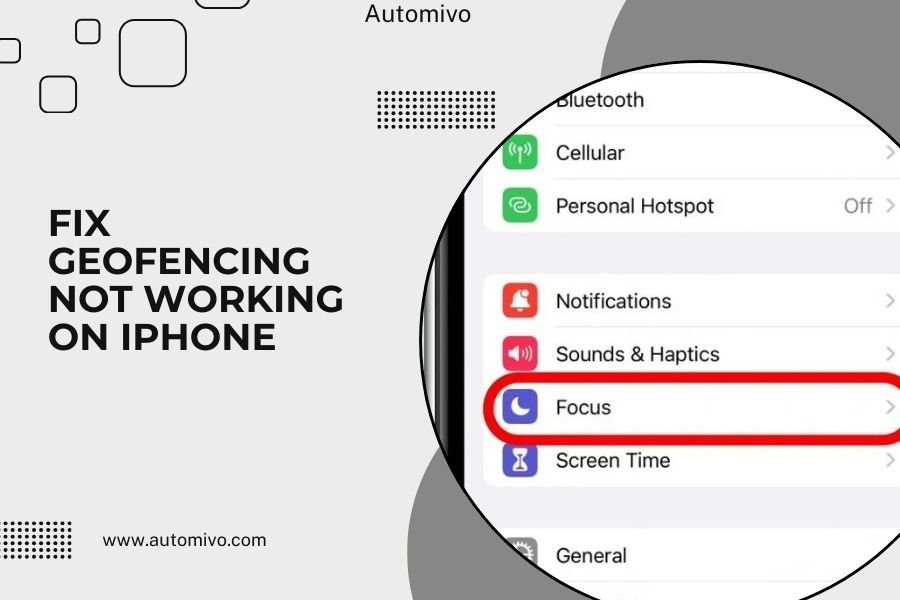
Geofencing not working on iPhone usually happens because location services are turned off or set incorrectly for specific apps.
You can fix this by checking your location settings, updating iOS, and making sure your apps have proper location permissions enabled.
What Is Geofencing and Why Does It Matter?
Geofencing creates invisible boundaries around specific locations using GPS technology. When you enter or leave these areas, your iPhone triggers automated actions.
Think of it like an invisible fence around your house. When you cross that line, your smart home knows you’re coming or going.
Your iPhone uses this for many things. Smart thermostats adjust temperature when you leave. Security systems arm themselves automatically. Your phone switches to silent mode at work.
Common Signs Your Geofencing Isn’t Working
You’ll know something’s wrong when automation fails to trigger. Your lights don’t turn on when you arrive home. The thermostat stays at the same temperature all day.
Maybe your phone keeps asking about location permissions. Or apps send notifications at random times instead of when you actually move.
Location-Based Reminders Fail
Your iPhone stops reminding you to buy milk when you pass the grocery store. Work reminders don’t pop up when you arrive at the office.
Smart Home Devices Stay Silent
Your smart locks don’t recognize when you’re home. Lights stay off even though you walked through the door an hour ago.
Why Geofencing Stops Working on iPhones
Location services cause most geofencing problems. Your iPhone needs constant access to GPS data to know where you are.
Battery saving modes can interfere too. iOS tries to save power by limiting location tracking in the background.
Incorrect Location Permissions
Apps need the right permissions to track your location. “While Using App” won’t work for geofencing. You need “Always” permission for most automation features.
Outdated iOS Software
Old iOS versions have bugs that break location services. Apple fixes these issues in updates, but you need to install them.
Low Power Mode Issues
Low Power Mode shuts down background app refresh. Your geofencing apps can’t check your location when they’re sleeping.
Step-by-Step Fix: Check Location Services
Start with the basics. Open Settings and tap Privacy & Security. Then tap Location Services.
Make sure Location Services is turned on at the top. If it’s off, nothing will work.
Enable System Services
Scroll down and tap System Services. Turn on “HomeKit” and “Location-Based Suggestions” if you use smart home devices.
Also enable “Location-Based Alerts” and “Home & Lock Screen” for better automation.
Check Individual App Settings
Go back to Location Services. Look for your smart home apps, reminder apps, and automation tools.
Tap each app. Choose “Always” instead of “While Using App” for geofencing to work properly.
Fix App-Specific Location Problems
Different apps need different location settings. Home automation apps almost always need “Always” permission.
Some apps also need “Precise Location” turned on. This gives them your exact GPS coordinates instead of a general area.
Update Location Permissions for Smart Home Apps
Find your thermostat app, security system app, or smart lighting app in Location Services. Set each one to “Always” and turn on “Precise Location.”
Reset Location Warnings
Sometimes you accidentally deny location access. Go to Settings > General > Transfer or Reset iPhone > Reset > Reset Location & Privacy.
This makes your iPhone ask for location permissions again. You can say yes this time.
Update Your iPhone Software
Apple fixes location bugs in iOS updates. Go to Settings > General > Software Update to check for new versions.
Install any available updates. Restart your phone after the update finishes.
Check for App Updates Too
Open the App Store and tap your profile picture. Look for pending updates to your smart home and automation apps.
Updated apps work better with newer iOS versions.
Turn Off Low Power Mode
Low Power Mode saves battery by limiting background activities. This breaks geofencing because apps can’t check your location regularly.
Go to Settings > Battery. Turn off Low Power Mode if it’s enabled.
Adjust Battery Settings for Specific Apps
Some apps have individual battery restrictions. In Settings > Battery, scroll down to see battery usage by app.
Tap an app and make sure “Background App Refresh” is turned on for your automation apps.
Restart Location Services Completely
Sometimes location services get stuck. Turn them off and back on to reset everything.
Go to Settings > Privacy & Security > Location Services. Turn off the main toggle at the top.
Wait 30 seconds. Turn Location Services back on. Check your app permissions again.
Test Your Geofencing Setup
After making changes, test your geofencing. Leave your house and come back. Check if your smart home responds.
Set up a location reminder to test basic geofencing. Ask Siri to remind you about something when you get to a specific place.
Use the Shortcuts App for Testing
The Shortcuts app has built-in location automation. Create a simple shortcut that triggers when you arrive somewhere.
This helps you figure out if the problem is with iOS or with specific apps.
Advanced Troubleshooting Steps
If basic fixes don’t work, try these advanced solutions.
Reset Network Settings
Go to Settings > General > Transfer or Reset iPhone > Reset > Reset Network Settings.
This resets WiFi passwords and cellular settings. It can fix GPS problems that interfere with location services.
Sign Out and Back Into iCloud
iCloud syncs location data between devices. Sign out of iCloud in Settings, then sign back in.
This refreshes your location permissions across all your Apple devices.
Check Date and Time Settings
Wrong date and time can break location services. Go to Settings > General > Date & Time.
Turn on “Set Automatically” to let your iPhone get the correct time from cell towers.
When Hardware Might Be the Problem
Sometimes the GPS chip in your iPhone stops working properly. This usually happens with physical damage or very old phones.
Test GPS accuracy in the Maps app. If it can’t find your location or shows you in the wrong place, you might need hardware repair.
Water Damage Signs
Water can damage GPS antennas inside your iPhone. If your phone got wet recently and location services stopped working, contact Apple Support.
Smart Home-Specific Geofencing Fixes
Smart home systems often have their own geofencing settings. Check your thermostat app, security system app, and smart lighting apps.
Many of these apps let you adjust the size of your geofence. Make it bigger if automation triggers too late.
HomeKit Automation Settings
Open the Home app on your iPhone. Tap the house icon, then Home Settings > Location Services.
Make sure location services are enabled for HomeKit. Check that your home location is set correctly.
Third-Party App Geofences
Apps like Nest, Ring, and SmartThings have separate geofencing controls. Open each app and look for location or geofencing settings.
You might need to set up geofencing again after fixing iPhone location services.
Battery Life and Geofencing Balance
Constant location tracking uses battery power. You need to find the right balance between automation and battery life.
Research from Apple shows that modern iPhones handle background location tracking efficiently. The battery impact is usually small.
Optimize Location Frequency
Some apps let you choose how often they check your location. More frequent checks mean faster automation but shorter battery life.
Start with standard settings. Only increase frequency if geofencing responds too slowly.
Multiple Device Geofencing
If you have multiple people in your home, set up geofencing on everyone’s phones. Smart home systems work better when they track all residents.
Most apps let you add family members. Each person needs the app installed with proper location permissions.
Family Sharing Considerations
Family Sharing can interfere with individual geofencing settings. Each family member needs their own location permissions for smart home apps.
Common Mistakes That Break Geofencing
Don’t set geofences too small. A 50-foot radius around your house might not give your phone enough time to trigger automation.
Avoid setting up too many geofences in the same area. This can confuse your iPhone’s location services.
Overlapping Geofence Problems
If you have geofences for home, work, and a coffee shop on the same street, they might interfere with each other.
Keep geofences at least 100 feet apart for reliable operation.
WiFi vs GPS Accuracy
Your iPhone uses WiFi networks to improve location accuracy. Make sure WiFi is turned on even when you’re using cellular data.
| Location Method | Accuracy | Battery Impact | Works Indoors |
|---|---|---|---|
| GPS Only | High | Medium | Poor |
| WiFi + GPS | Very High | Low | Good |
| Cellular Only | Low | Very Low | Fair |
Conclusion
Fixing geofencing on your iPhone usually comes down to location permissions and software updates. Start by checking that Location Services is turned on and your apps have “Always” permission.
Don’t forget to turn off Low Power Mode and update your iOS software. These simple steps solve most geofencing problems.
If you’re still having trouble, try the advanced troubleshooting steps like resetting network settings. Remember that geofencing works best when you balance automation needs with battery life.
Your smart home will thank you for taking the time to get geofencing working properly. There’s nothing quite like walking into a house that knows you’re coming home.
Why does my iPhone geofencing work sometimes but not others?
Inconsistent geofencing usually happens because of battery saving features or poor GPS signal. Your iPhone might delay location checks to save power, especially when battery is low. Try turning off Low Power Mode and make sure your geofencing apps have “Always” location permission instead of “While Using App.”
Can I use geofencing without draining my iPhone battery quickly?
Yes, modern iPhones handle geofencing efficiently. Apple optimized location services to use minimal battery power for background tracking. Make sure you’re running the latest iOS version and only give “Always” location permission to apps that actually need geofencing features.
How big should I make my geofence for reliable smart home automation?
Set your geofence radius to at least 100-200 feet around your home. This gives your iPhone enough time to communicate with your smart home devices before you actually arrive. Smaller geofences might trigger too late, especially if you’re driving fast or have weak cellular signal.
Will geofencing work if I turn off WiFi on my iPhone?
Geofencing will still work with WiFi off, but it won’t be as accurate. Your iPhone uses WiFi networks to improve GPS precision, especially indoors and in urban areas. For best results, keep WiFi turned on even when you’re using cellular data for internet access.
Why do I keep getting location permission requests from the same apps?
Apps ask for location permission again when iOS detects unusual location access patterns or after certain security updates. This is normal behavior to protect your privacy. You can stop these requests by going to Settings > Privacy & Security > Location Services and setting your preferred apps to “Always” permanently.
